
How to Remove PC App Store Adware on Windows

Bisma Farrukh
Many Windows users encounter unexpected pop-ups, slow system performance, or unfamiliar software called PC App Store, which is installed on their computers. While the name sounds similar to official app marketplaces, it often raises concerns about security and privacy. Users frequently ask whether PC App Store is a virus, how it entered their system, and how to remove it safely. Understanding the nature of PC App Store adware is crucial for protecting your computer from unwanted programs, intrusive advertisements, and potential data security risks.
Table of Contents
What Is PC App Store?
PC App Store is a third-party application distribution platform designed to promote software downloads on Windows systems. Unlike official marketplaces such as the Microsoft Store, the PC App Store is not developed or endorsed by Microsoft. It typically presents itself as a helpful tool for finding popular applications, but many users report that it installs without explicit consent and displays aggressive advertisements. Due to its intrusive behavior, it is commonly classified as a potentially unwanted program (PUP).
Is PC App Store a Virus?
The PC App Store is not a traditional virus, such as ransomware or trojans, that directly damages files. However, it behaves like adware by generating persistent pop-ups, redirecting browsers, and installing additional unwanted software. Security experts often label it as malicious due to its deceptive installation methods and privacy risks. While it may not destroy data, it can expose users to unsafe websites and increase vulnerability to more serious malware infections.
Is PC App Store Safe?
PC App Store is generally considered unsafe for everyday users. It may track browsing behavior, display misleading ads, and promote applications from unverified sources. These activities can compromise user privacy and degrade system performance. Because it operates outside official security controls, it increases the risk of downloading bundled malware or spyware.
Is There a Fake App Store?
Yes, fake app stores exist and often mimic the names or appearance of legitimate platforms. PC App Store is frequently mistaken for an official service due to its branding. Fake app stores typically distribute bundled software, show intrusive ads, and lack proper security screening. Users should rely only on official marketplaces to avoid such risks.
Is the PC App Store Legitimate?
PC App Store is not a legitimate or official app marketplace. While it functions as a software installer, its aggressive advertising, lack of transparency, and unauthorized installations raise serious concerns. Most cybersecurity experts recommend removing it and avoiding similar third-party app stores.
How Do PC App Store Viruses Spread?
PC App Store viruses spread through the following methods.
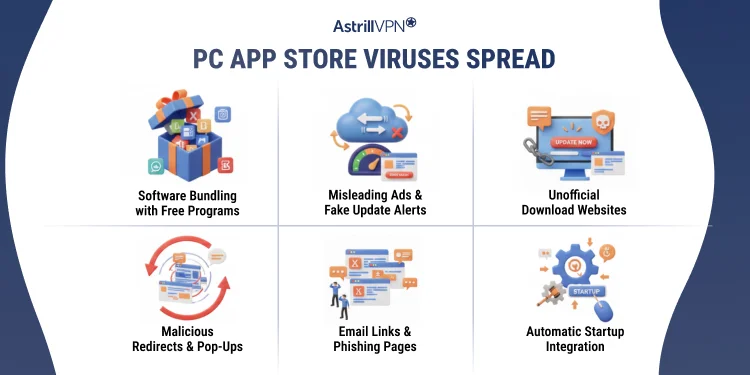
Software Bundling with Free Programs
The most common way PC App Store viruses spread is through software bundling. The adware is often included with free applications downloaded from third-party websites. When users choose the default or recommended installation option, PC App Store installs silently in the background without clear disclosure, making it easy to miss during setup.
Misleading Ads and Fake Update Alerts
The PC App Store is frequently spread through deceptive online advertisements and fake system update notifications. These pop-ups claim that a browser, media player, or operating system needs an urgent update. When users click these alerts, they are redirected to download installers that secretly include PC App Store adware.
Unofficial Download Websites
Websites offering cracked software, freeware, or pirated content are a significant source of PC App Store infections. These platforms often host installers that have been modified to include adware components. Downloading from such sources significantly increases the risk of unintentionally installing unwanted programs.
Malicious Redirects and Pop-Ups
Some compromised or low-quality websites trigger automatic redirects and aggressive pop-ups that push PC App Store downloads. These redirects may occur after clicking banners, fake download buttons, or suspicious links, leading users to deceptive installation pages.
Email Links and Phishing Pages
In some instances, PC App Store spreads through phishing emails containing harmful links or attachments. Clicking these links can redirect users to fake download pages that install adware under the guise of legitimate software.
Automatic Startup Integration
Once installed, the PC App Store integrates itself into the system’s startup processes. This allows the adware to launch automatically every time the computer starts, increasing exposure to pop-ups and making the infection harder to detect and remove early.
Key Statistics on Adware and Potentially Unwanted Programs
Adware and potentially unwanted programs (PUPs) remain one of the most widespread security issues affecting personal computers worldwide.
- Security reports consistently show that adware accounts for nearly 30–40% of all malware detections, making it one of the most common threats faced by Windows users. Programs like PC App Store fall into this category due to their intrusive behavior and deceptive installation methods.
- Research indicates that over 40% of internet users have unintentionally installed adware or bundled software while downloading free applications. In many cases, users are unaware of the installation until pop-ups, browser redirects, or system slowdowns begin to occur.
- These unwanted programs are also responsible for approximately 25% of browser-related complaints, including excessive ads and homepage hijacking.
- Studies further reveal that more than 60% of PUP infections originate from third-party download sites, underscoring the risks associated with using unofficial software sources.
- Additionally, systems infected with adware experience an average decrease in performance of 20–35%, particularly during startup and web browsing. These statistics underscore the importance of identifying and removing adware, such as PC App Store, in maintaining system security and performance.
Common Signs of PC App Store Adware Infection
Frequent and Intrusive Pop-Ups
One of the most noticeable signs of PC App Store adware infection is the constant appearance of pop-up ads. These pop-ups often promote software downloads, system optimizers, or fake security alerts and may appear even when the browser is closed, disrupting everyday computer use.
Browser Redirects and Unwanted Ads
Infected systems may experience sudden browser redirects to unfamiliar or suspicious websites. Sponsored ads, banners, and in-text advertisements may appear on otherwise trusted webpages, indicating that adware is actively injecting content into the browser.
Slower System Performance
PC App Store adware can consume system resources by running background processes. Users often notice slower startup times, lag during browsing, and overall reduced performance, especially on older or low-memory systems.
Unauthorized Program Installations
Another common sign is the presence of unfamiliar applications that have been installed without user permission. PC App Store may download additional potentially unwanted programs, increasing security risks and making the system more difficult to clean.
Changes to Browser Settings
Adware infections often modify browser settings, including the default homepage, search engine, and new tab behavior. These changes frequently occur without consent and may reappear even after manual adjustments.
Persistent Startup Behavior
PC App Store adware often adds itself to system startup entries, allowing it to launch automatically every time the computer boots. This persistence makes the infection harder to remove and ensures continued exposure to ads and pop-ups.
How to Stop PC App Store Pop-Ups?
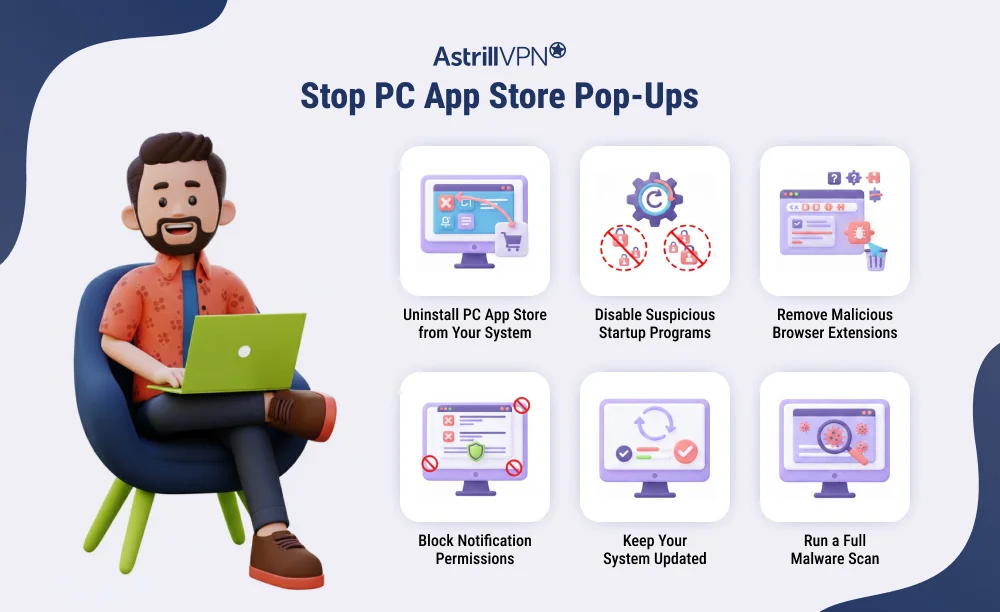
Uninstall PC App Store from Your System
The first step to stopping PC App Store pop-ups is removing the program from your computer.
- Go to the Control Panel or Apps & Features.
- Locate the PC App Store or any unfamiliar applications, and uninstall them.
- This helps eliminate the primary source of the ads.
Disable Suspicious Startup Programs
To prevent the repeated appearance of pop-ups, disable the suspicious “PC App Store” startup entries via Task Manager. Because this application often launches automatically when the system starts, preventing it from running at startup will immediately reduce the frequency of adware pop-ups.
Remove Malicious Browser Extensions
Adware frequently installs unwanted browser extensions to display ads and redirects. Check the extensions or add-ons section of your browser and remove any unfamiliar items. Resetting browser settings can also help restore normal behavior.
Block Notification Permissions
PC App Store pop-ups use browser notification permissions to deliver ads. Review your browser’s notification settings and revoke permissions granted to unknown websites to immediately reduce pop-up alerts.
Run a Full Malware Scan
Using a reputable antivirus or anti-malware tool to perform a full system scan is one of the most effective ways to stop PC App Store pop-ups. These tools can detect and remove hidden adware components completely.
Keep Your System Updated
Regularly updating your operating system and security software helps close vulnerabilities that adware exploits. Updates enhance detection capabilities and minimize the risk of pop-ups reappearing after removal.
How Do I Scan My PC for Viruses?
You can scan your PC for Viruses by following the instructions.
Use Built-In Windows Security Tools
Windows computers come with Windows Security (formerly Windows Defender), which can detect and remove viruses, malware, and adware, such as those found in the PC App Store. Open Windows Security, go to the Virus & Threat Protection section, and run a Full Scan for the most thorough check. This ensures that hidden threats in system files are detected.
Run Third-Party Antivirus Software
In addition to built-in tools, using a reputable antivirus program such as Malwarebytes or Bitdefender provides deeper scanning and better protection against adware and potentially unwanted programs (PUPs). Install the software, update its virus definitions, and perform a full system scan rather than a quick scan for maximum effectiveness.
Scan Using Anti-Malware Tools
Dedicated anti-malware tools specialize in detecting adware, spyware, and PUPs that standard antivirus programs may miss. Tools like AdwCleaner or HitmanPro are effective for removing PC App Store components and related pop-ups.
Check Scan Results Carefully
After the scan completes, review the results and quarantine or remove any detected threats. Some scans may identify multiple PUPs from previous adware installations. Removing all threats ensures your PC is fully clean.
Schedule Regular Scans
To prevent future infections, schedule regular virus scans using your antivirus software. Weekly or bi-weekly scans help catch threats early and maintain system security.
Keep Security Software Updated
Finally, always keep your antivirus or anti-malware software up to date. Updated virus definitions enhance the detection of the latest adware, malware, and PC App Store variants, ensuring your system remains safe.
How to Get Rid of PC App Store Virus?
You can remove the PC App Store virus in the following ways.
Uninstall PC App Store Manually
Start by removing the PC App Store from your system through the Apps & Features in Windows. Look for the PC App Store or any unfamiliar programs installed around the same time and uninstall them. This step removes the primary adware application but may not eliminate all related components.
Remove Related Startup Entries
PC App Store adds itself to the system startup to remain active. Open Task Manager and review the Startup tab to disable suspicious or unknown entries. Preventing the adware from launching at startup helps stop recurring pop-ups and background activity.
Clean Browser Extensions and Settings
Check all installed browsers for unwanted extensions linked to the PC App Store. Remove any unfamiliar items and reset browser settings to default. This helps undo changes made by the adware, such as redirects and injected ads.
Run a Full System Malware Scan
Use a trusted antivirus or anti-malware program to perform a complete system scan. Security tools can detect hidden adware files, registry entries, and bundled threats that manual removal may miss. Delete any detected threats to ensure complete cleanup.
Delete Temporary Files and Cache
Clearing temporary files and browser cache helps remove leftover adware traces. This step can also improve system performance and reduce the chance of the infection reloading from stored data.
Update Your System and Security Software
After removal, update your operating system and antivirus software to the latest versions. Regular updates strengthen system defenses and reduce the risk of the PC App Store being returned in the future.
Practice Safe Download Habits
To prevent reinfection, download software only from official or trusted sources and always select the custom installation option. Reviewing bundled offers carefully helps avoid accidentally installing adware again.
PC App Store Adware Removal Best Practices
Following best practices is performed for Adware removal.
Use Trusted Security Software
The most reliable way to remove PC App Store adware is by using a reputable antivirus or anti-malware program. Tools like Malwarebytes or Bitdefender specialize in detecting potentially unwanted programs (PUPs) and can remove hidden adware components that manual methods may miss.
Uninstall Suspicious Programs Manually
Always start by removing the PC App Store and any unfamiliar programs from your system through the Control Panel or the Apps & Features section. This helps eliminate the primary source of adware before running scans for leftover files.
Clean Up Browser Extensions and Settings
Check all web browsers for unwanted extensions, add-ons, and altered settings. Removing suspicious items and resetting browsers to default helps restore normal behavior and prevents redirects, injected ads, and pop-ups.
Remove Temporary Files and Cached Data
Clearing temporary files, browser cache, and system cache can remove residual adware files and improve system performance. Tools like Disk Cleanup on Windows or built-in browser clearing options work effectively for this purpose.
Monitor Startup Programs
PC App Store often adds itself to the system startup to remain persistent. Use the Task Manager or MSConfig to review startup entries and disable any unknown or suspicious programs, thereby reducing the likelihood of recurring infections.
Update System and Security Software Regularly
Keeping Windows, browsers, and security software up to date helps close vulnerabilities that adware and other threats exploit. Regular updates also improve detection capabilities for new variants of PC App Store and other PUPs.
Avoid Unverified Downloads
Prevent future infections by downloading software only from official sources. Always select custom installation options to review and deselect any bundled programs, minimizing the risk of inadvertently installing adware again.
Backup Important Data
Regularly backing up your essential files ensures you can recover your system if malware causes damage. This is a precautionary measure that helps protect your data during removal processes or in case of reinfection.
Conclusion
PC App Store may appear harmless at first glance, but its intrusive behavior and deceptive installation methods make it a serious nuisance for Windows users. While not a classic virus, it poses security and privacy risks that should not be ignored. By understanding how PC App Store adware spreads, recognizing early warning signs, and following proper removal steps, users can restore system performance and protect their devices from future threats. Staying cautious with downloads and using reliable security software remains the best defense against unwanted programs.

Secure your privacy instantly. Try AstrillVPN with zero risk.
About The Author


No comments were posted yet