
Security Delay iPhone: What It Is and How to Manage It?

Arsalan Rathore
If you’ve recently encountered a message on your iPhone asking you to wait an hour before changing a password or other security setting, you’re not alone. This is Apple’s security delay feature, and it’s designed to protect your device from sophisticated theft tactics.
In this comprehensive guide, we’ll walk you through everything you need to know about iPhone security delay, including what it is, how it works, and how to manage it effectively.
Table of Contents
What is Security Delay on an iPhone?
Security delay on an iPhone is a one-hour waiting period that Apple introduced as part of its Stolen Device Protection feature in iOS 17.3. When you attempt to change specific sensitive settings on your device, you’ll need to authenticate with Face ID or Touch ID, wait for one hour, and then authenticate again before the change takes effect.
This feature was specifically designed to combat a growing problem: thieves who watch people enter their passcodes in public places, steal their phones, and then quickly take over their Apple accounts. The one-hour delay gives you time to mark your device as lost and secure your account before a thief can cause permanent damage.
The security delay applies when you’re away from familiar locations, such as your home or workplace. At these trusted locations, you can make changes with just a single biometric authentication. However, when you’re out in public, the full security delay kicks in to protect you.
It’s worth noting that this isn’t a bug or malfunction. Apple intentionally created this feature to add an extra layer of protection for your most sensitive data and account settings.
How Does iPhone Security Delay Work?
- Security Delay activates when someone tries to change sensitive account or security settings while the iPhone is away from familiar locations.
- Familiar locations are identified using on device location data, such as places you regularly visit like home or work.
- Once a protected action is triggered, the iPhone enforces a mandatory waiting period.
- During this waiting period, the change cannot be completed, even if the correct device passcode is entered.
- After the delay ends, Face ID or Touch ID authentication is required to proceed.
- If biometric verification fails, the action remains blocked and cannot be completed.
What Triggers Security Delay on an iPhone?
Security Delay is not applied to every action on an iPhone. Apple limits it to changes that could immediately lock the owner out or weaken account protection.
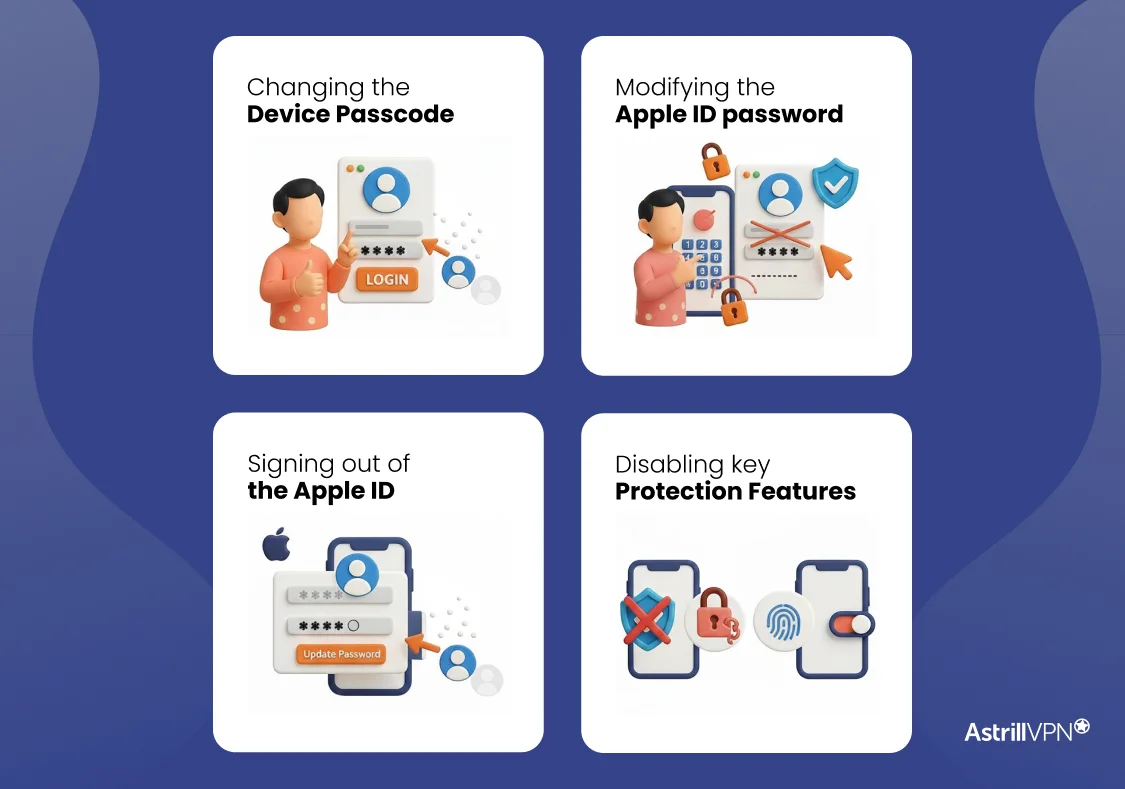
The delay is triggered when someone attempts to make high-risk security changes, including the following.
Changing the device passcode
Updating the iPhone passcode triggers Security Delay because it controls access to the device. If a thief changes the passcode, the legitimate owner loses access entirely.
Modifying the Apple ID password
Your Apple ID password protects iCloud data, backups, purchases, and connected devices. Any attempt to change it activates Security Delay to prevent account takeovers.
Signing out of the Apple ID
Signing out disconnects the Apple ID from the device. Attackers often attempt this to break the link between the phone and its owner, which is why it requires a delay.
Disabling key protection features
Security Delay also applies when someone tries to:
- Turn off Find My iPhone
- Add or remove Face ID or Touch ID profiles.
- Use Erase All Content and Settings
- Disable Stolen Device Protection
How to Turn On the Security Delay on an iPhone?
Security Delay is part of Apple’s advanced theft protection features, and it can be enabled directly from your iPhone settings. Before turning it on, make sure your device is updated to a supported iOS version and that Face ID or Touch ID is already set up.
Requirements Before Enabling Security Delay
To activate Security Delay, the following conditions must be met:
- Face ID or Touch ID is enabled
- A device passcode is set.
- Two-factor authentication is active for your Apple ID.
- Find My iPhone is turned on
Steps to Turn On Security Delay on an iPhone
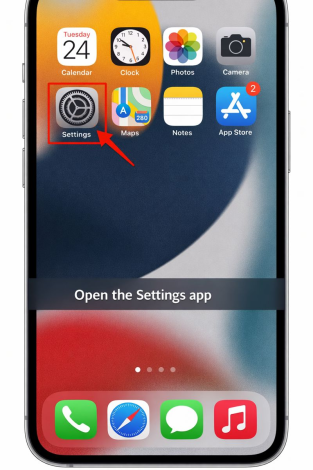
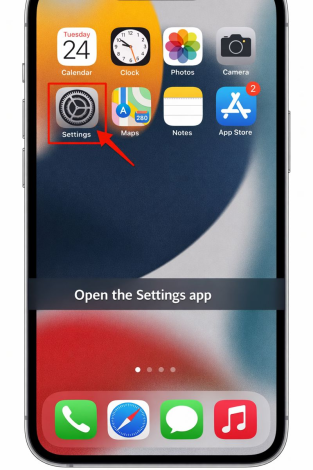
- Open the Settings app
- Tap Face ID and Passcode or Touch ID and Passcode
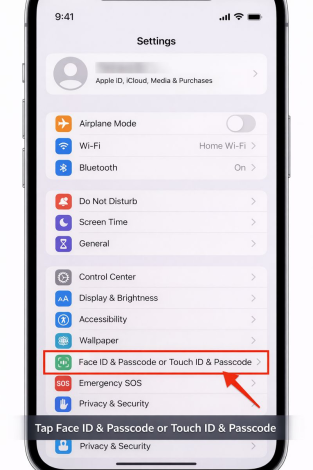
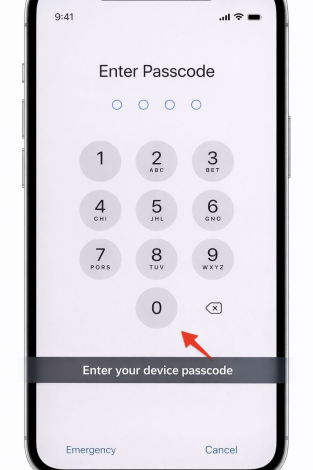
- Enter your device passcode.
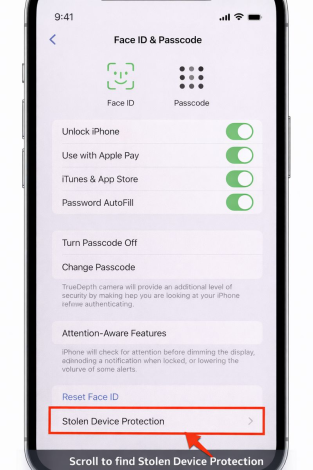
- Scroll to find Stolen Device Protection.
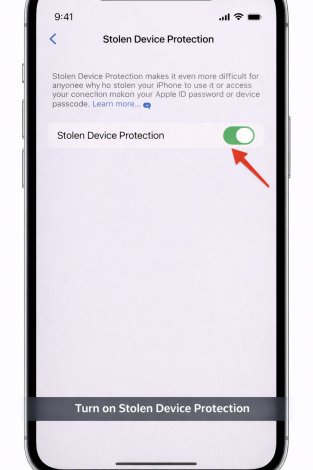
- Turn on Stolen Device Protection
How to Confirm Security Delay Is Active
After enabling the feature, protected security actions will show a delay notice when attempted outside trusted locations. This confirms that Security Delay is working as intended.
How to Turn Off Security Delay on iPhone
There are legitimate reasons to disable security delay, such as when selling your iPhone or if you’re traveling extensively and find the feature too restrictive.
Understanding the Process
Disabling the security delay means turning off Stolen Device Protection entirely. You can’t disable just the delay portion while keeping other aspects of the feature active.
The process of disabling varies depending on your location. If you’re in a familiar location, such as home or work, you can turn it off with just a single biometric authentication. However, if you’re away from familiar locations or if you have the feature set to “Always,” disabling it will trigger the security delay itself. You’ll need to authenticate, wait an hour, and authenticate again before the feature turns off.
- Open Settings and navigate to Face ID & Passcode (or Touch ID & Passcode). Enter your passcode when prompted, then scroll down to the Stolen Device Protection section.
- Tap the toggle switch to turn it off. Your iPhone will immediately request Face ID or Touch ID authentication. Scan your face or place your finger on the sensor.
- If you’re at a familiar location and have “Away from Familiar Locations” selected, Stolen Device Protection will turn off immediately after this authentication. The toggle will turn gray, indicating the feature is now disabled.
- If you’re away from familiar locations or had “Always” selected, you’ll see the security delay screen appear with a countdown timer showing 1:00:00. Tap the “Start Security Delay” button to begin the countdown. You’ll need to wait the full hour.
- During this waiting period, you can use your iPhone completely normally. The delay only prevents you from completing the disabling process.
- After the hour ends, you’ll receive a notification that the security delay is ready. Go back to Settings, Face ID & Passcode, scroll to Stolen Device Protection, tap the toggle again, and perform a second Face ID or Touch ID authentication. The feature will now turn off completely.
Understanding Familiar Locations
The concept of familiar locations is central to how security delay works, so it’s important to understand how your iPhone determines these places.
How do Significant Locations work?
Significant Locations is an iOS feature that tracks where you spend substantial amounts of time. Your iPhone uses GPS, Wi-Fi networks, cellular towers, and Bluetooth signals to pinpoint your location accurately over time.
The system doesn’t just note that you visited an area once. It learns patterns based on frequency and duration. If you spend several hours in the exact location every day, your iPhone recognizes it as a significant place. A quick stop at a store won’t make it essential, but your daily commute to an office definitely will.
All of this location data is encrypted and stored only on your device. Apple cannot access this information, and it never leaves your iPhone unless you transfer it during device setup or restore from backup.
Checking Your Locations
To see the places your iPhone recognizes as familiar, follow these steps:
1. Open Settings.
2. Tap Privacy & Security.
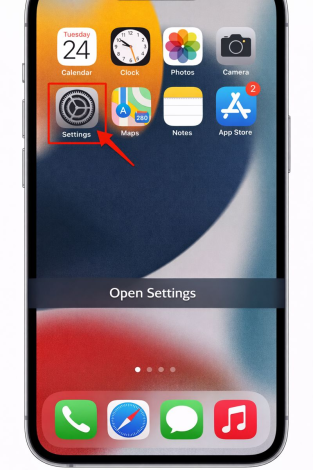
3. Select Location Services.
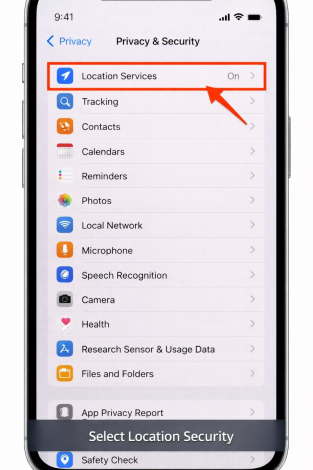
4. Scroll to the bottom and tap System Services.
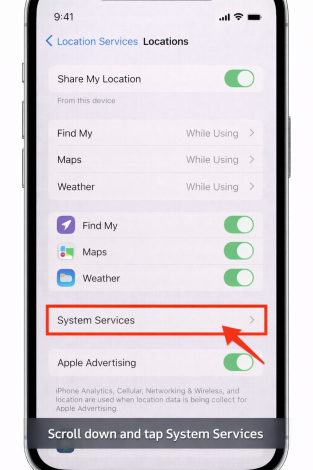
5. Scroll down and choose Significant Locations.
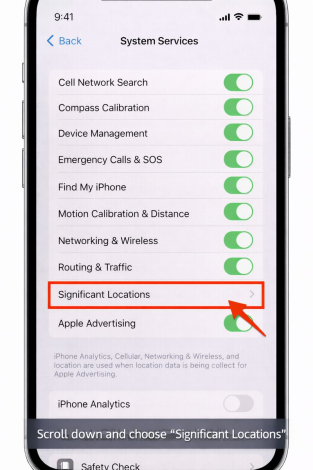
You may need to enter your passcode or use your fingerprint or face recognition.
On this screen, you will find “Recent Records,” which lists all the places your iPhone has previously visited. Each place typically has a label, such as “Home” or “Work,” a small map preview, and details about your visits to that location.
If you don’t see many locations or if essential places, such as your home, are missing, your iPhone hasn’t gathered enough data yet. This often occurs with new devices or when you first enable this feature.
Troubleshooting Location Recognition
- If your iPhone isn’t recognizing your home, it may take one to two weeks in the same location to learn it as a familiar place.
- Ensure the Significant Locations feature is enabled; otherwise, your iPhone won’t track locations. This affects security settings if set to “Away from Familiar Locations.”
- Weak GPS signals can be an issue in buildings with thick walls or metal roofs, affecting location accuracy.
- In large apartment buildings, your iPhone may struggle to accurately recognize your unit due to weak indoor GPS signals.
Security Delay on an iPhone vs Other Apple Security Features
Apple employs multiple security layers on the iPhone, each protecting a distinct aspect of the user experience. Security Delay is not a replacement for existing features. It fills a specific gap that others do not address.
What Security Delay Is Designed to Protect?
Security Delay focuses on account-level protection, not device access. It is meant to prevent rapid changes to critical Apple ID and security settings after an iPhone has already been unlocked. This makes it especially effective in theft scenarios where the passcode is compromised.
How Security Delay Differs From Face ID and Touch ID?
Face ID and Touch ID control who can unlock the device. Once the passcode is known, these protections lose their effectiveness. Security Delay assumes the device is already unlocked and adds a second line of defense by:
- Blocking immediate security changes
- Enforcing a waiting period
- Requiring biometric authentication after the delay
Security Delay vs Stolen Device Protection
Both features activate outside familiar locations, but they work differently.
Stolen Device Protection:
- Requires Face ID or Touch ID for sensitive actions
- Does not introduce a waiting period
Security Delay:
- Introduces a mandatory time delay
- Blocks completion of critical changes until the delay expires
- Requires biometric verification after the delay
Why Screen Time and Find My Are Not Enough?
Screen Time restrictions control usage and permissions, not account ownership.
Find My iPhone helps locate or lock a device, but it does not prevent immediate changes to an Apple ID once access is gained.
Security Delay targets the exact moment when attackers attempt to take permanent control of an account, something these features were not built to handle.
Where Security Delay Fits in Apple’s Security Model?
Each feature plays a role:
- Face ID and Touch ID protect access.
- Stolen Device Protection limits sensitive actions.
- Find My supports recovery.
- Security Delay slows account takeovers.
Common Problems and Solutions
Even with a proper setup, you might encounter issues with security delays. Here are the most common problems and their solutions.
Security Delay Activating at Home
Dealing with a security delay while you’re at home can be quite frustrating. If that happens, first check your location in the Maps app. If the blue dot indicating your position is far from your actual home, it’s likely that your GPS isn’t functioning accurately.
To improve location precision, follow these steps:
- Ensure that your Wi-Fi is turned on, even if you’re not connected to a network. Your iPhone relies on nearby Wi-Fi to enhance GPS accuracy.
- Another good step is to restart your iPhone. Simply press and hold the power and volume buttons until the power slider shows up. Slide to turn off your device, wait about 30 seconds, and then power it back on. After restarting, allow a few minutes for location services to fully activate before making any changes to your security settings.
- Sometimes, just being patient can help. Your iPhone may take a bit of time to establish a precise GPS fix, particularly when you’ve just arrived home or after it has been woken up from sleep.
Unable to Complete Biometric Authentication
Since security delay requires Face ID or Touch ID with no passcode fallback, authentication failures can leave you stuck. If Face ID isn’t working, ensure your face is visible. Remove your sunglasses, mask, or any other covering over your face. Ensure you have adequate lighting, as Face ID struggles in complete darkness or with bright sunlight shining directly at your face.
Clean your iPhone screen thoroughly, paying special attention to the notch area where the Face ID sensors are located. Dirt, smudges, or fingerprints can interfere with the sensors.
For Touch ID issues, cleanliness is equally important. Wash and dry your hands thoroughly, then clean the Home button. Oil, moisture, or dirt on either your finger or the button prevents accurate reading.
Try different registered fingers if you’ve enrolled multiple fingerprints. Sometimes one finger reads more clearly than others, depending on conditions.
Pros and Cons of iPhone Security Delay
iPhone Security Delay is designed to reduce account takeover risks, but like any security feature, it comes with trade offs. Understanding both sides helps you decide whether it fits your daily usage.
Pros of iPhone Security Delay
Stronger Apple ID protection
Security Delay makes it much harder for someone to take control of your Apple ID, even if they know your passcode. This protects iCloud data, backups, and connected devices.
Time to respond after theft
The enforced delay provides a critical window to lock your device, change your credentials, or contact Apple support before permanent changes are made.
Biometric-based verification
Sensitive actions require Face ID or Touch ID after the delay, reducing reliance on passcodes alone.
No impact on daily use
Security Delay only activates during high risk security changes. Normal iPhone usage remains unaffected.
Cons of iPhone Security Delay
Waiting period for security changes
If you need to update important security settings while away from familiar locations, you must wait before the change is completed.
Limited control over deactivation
Security Delay cannot be instantly turned off outside trusted locations, which may be frustrating for some users.
Not customizable
Apple does not allow users to adjust which actions trigger the delay or change the duration of the waiting period.
Who Should Use Security Delay?
Security Delay is designed for users who want stronger protection against account takeovers and device theft.
- It is especially recommended for:
- Users who store personal or business data in iCloud
- People who travel frequently or use their iPhone in public spaces
- Anyone with multiple Apple devices linked to one Apple ID
- Users who rely on their iPhone for payments, backups, or authentication
Final Thoughts
The iPhone security delay helps prevent theft by giving victims time to respond to incidents like shoulder surfing. Enabling Stolen Device Protection with the “Away from Familiar Locations” option strikes a balance between security and convenience, allowing for easy access at home or work while remaining safe in public.
To maximize this feature, change settings in familiar spots, disable it before trading in your device, and let your iPhone learn your regular locations. This delay is one aspect of iPhone security; also, use strong passcodes, enable two-factor authentication, keep Find My active, and back up your iCloud regularly.
Ultimately, using this feature depends on your risk tolerance and lifestyle. If theft is a concern or you frequently use your phone in public, the extra security is beneficial.
FAQs
An Apple security warning is genuine only if it appears in your iPhone settings, system notifications, or comes from an official Apple email linked to your Apple ID. Warnings displayed in browsers, random apps, text messages, or requests to call a number are almost always fake.
For most users, yes. Security Delay adds protection against account takeovers after theft and does not interfere with everyday iPhone use. The only downside is a short wait when changing security settings outside familiar locations.
Apple may alert you about suspicious sign-in attempts or unusual account activity, but it does not send messages saying your phone is hacked. Alerts claiming your iPhone is hacked are usually scams.

Secure your privacy instantly. Try AstrillVPN with zero risk.
About The Author


No comments were posted yet