
Your Connection Is Not Private Error: Causes and Fixes

Arsalan Rathore
When your browser says your connection is not private, it means it can’t confirm a secure link between your device and the website. This warning appears if security details are missing or unreliable, preventing the page from loading until you choose an action. Browsers do this to protect your data, since online security is now a top priority.
This guide explains why this warning appears and what it means for your security. It also describes the leading causes, from website certificate problems to issues with your device or network. Knowing these reasons helps you decide if a connection is safe, rather than just guessing.
Table of Contents
What is the “Your connection is not private” Error?
When your browser displays the message that your connection is not private, it is alerting you to a potential risk in the security of the website you are trying to visit. This warning occurs when the browser cannot verify that the connection is encrypted and trustworthy. It is not a minor technical glitch or a casual suggestion. It is a deliberate pause designed to protect your data from exposure.
At its core, the warning is about trust. Browsers rely on SSL and TLS certificates to ensure that the websites you visit are legitimate and that any information you send or receive remains confidential. When these certificates cannot be verified, the browser cannot guarantee that your data is safe, and the your connection is not private error appears.
How the Warning Works
A secure connection depends on several elements functioning correctly:
- A valid SSL or TLS certificate issued by a trusted authority
- Accurate system date and time on your device
- A properly configured browser and network that allow certificate validation
Visualizing Secure Versus Blocked Connections
A simple comparison highlights why this warning exists:
| Connection Type | Browser Expectation | Result When Validation Fails |
| Secure HTTPS | Valid certificate, encrypted communication, trusted site | Page loads normally, and your data remains private |
| Unverified or Insecure | Certificate missing, expired, or untrusted | The browser blocks the page and displays the Your connection is not private error |
What Causes the “Your Connection Is Not Private” Error?
The Your connection is not private error appears when the browser cannot verify that the website you are trying to access is secure. The causes can originate from the website itself, your device, or the network you are using. Understanding these causes is essential to know how to respond safely and effectively.
Website-Related Causes
Many instances of this error stem from issues on the website’s side. Common website-related problems include:
- Expired SSL or TLS certificates: Certificates have a set validity period. Once they expire, browsers cannot confirm the website’s security.
- Misconfigured or missing certificates: Some websites fail to implement HTTPS correctly, leaving users vulnerable to exposure.
- Domain mismatch: If the certificate is issued for a different domain than the one you are visiting, the browser cannot validate the connection.
- Untrusted Certificate Authority: Certificates issued by sources not recognized by the browser will trigger a warning.
Device and Browser-Related Causes
Even when a website is correctly configured, local conditions on your device can trigger the your connection is not private error. These include:
- Incorrect system date and time: Browsers rely on accurate timestamps to verify certificate validity. Even a small discrepancy can prevent validation.
- Cached certificate or browsing data conflicts: Stored certificates or outdated cache can interfere with the browser’s verification process.
- Outdated browsers or operating systems: Older browsers or OS versions may not recognize modern certificates or encryption standards.
- Security software interference: Antivirus or firewall settings can sometimes block certificate verification or alter secure connections.
Network-Related Causes
The networks you use can also affect the ability to establish a secure connection:
- Public Wi-Fi networks: Open networks with login portals or network restrictions may disrupt certificate validation.
- Captive portals or network interception: Some networks temporarily redirect traffic for authentication purposes, which browsers may flag as insecure.
- VPN or proxy conflicts: Incorrectly configured VPNs or proxies can interfere with SSL verification, triggering the error.
What Does “Your Connection Is Not Private” Look Like
The Your connection is not private error manifests differently depending on the browser you are using. Still, the underlying message is always the same: the browser cannot verify that the connection is secure. Recognizing how this warning appears across browsers helps users understand the situation and respond appropriately.
Google Chrome
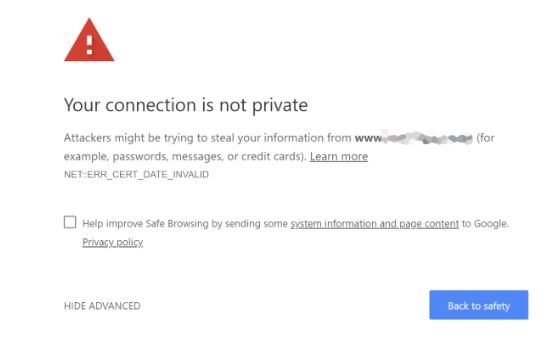
In Chrome, the warning appears as a full-page message with a clear alert icon. The title reads ‘Your connection is not private,’ followed by a brief explanation that attackers may be attempting to steal your information from the site. Chrome often includes an error code, such as
NET::ERR_CERT_DATE_INVALID or NET::ERR_CERT_AUTHORITY_INVALID, to indicate the reason for the alert. Users are given the option to return to safety or proceed with caution, though proceeding is not recommended unless the website is trusted.
Mozilla Firefox
Firefox presents a similar full-page warning with the message your connection is not secure. It explains that the website’s certificate is not valid and emphasizes that continuing could expose personal information. Firefox may display error codes like
SEC_ERROR_EXPIRED_CERTIFICATE or MOZILLA_PKIX_ERROR_SELF_SIGNED_CERTIFICATE.
Users can choose to return to the previous page or view more information about the certificate, which can help them diagnose the problem.
Microsoft Edge
Edge displays a full-page warning labeled ‘Your connection is not private.’ The explanation highlights potential risks and often references certificate errors similar to those found in Chrome. Users are prompted to go back to safety or access advanced settings to continue at their own risk. Edge clearly signals that proceeding may compromise sensitive information, reinforcing the importance of privacy.
Safari
Safari, both on Mac and iOS devices, presents a warning with the message “Your connection is not private” and includes a visual icon indicating caution. It warns that sensitive information such as passwords and credit card details may be exposed. Users are given the option to show information on the certificate and choose whether to continue, though bypassing the warning is discouraged unless the website is fully trusted.
How to Fix Your Connection Is Not Private Error
Encountering the your connection is not private error can be alarming, but in most cases, it can be resolved quickly by addressing common causes on your device, network, or browser. The steps below provide a clear and practical approach, from simple checks to more advanced troubleshooting. Following them helps ensure that your browsing remains secure.
1. Refresh the Page or Try Again
Sometimes, the error appears temporarily due to network interruptions or server hiccups. Simply refreshing the page or closing and reopening the browser can resolve the issue. If the problem persists, it is a sign to investigate further.
2. Check and Correct Your Device’s Date and Time
Browsers rely on accurate system dates and times to validate certificates. Even a small discrepancy can trigger the your connection is not private error. Verify that your device’s clock, date, and time zone are set correctly. On most systems, enabling automatic time updates is the safest option.
3. Clear Browser Cache and Cookies
Stored cache or outdated certificate data can interfere with certificate validation. Clearing your browser’s cache and cookies removes these conflicts and often resolves the warning. Remember that clearing cookies will log you out of websites, so plan accordingly.
4. Use Incognito or Private Mode
Opening the website in a private browsing session bypasses cached data and extensions that may be causing the error. If the page loads correctly in this mode, it indicates that local browser data or extensions are likely contributing factors.
5. Disable VPN or Antivirus Temporarily (If Safe)
Some VPNs and antivirus programs perform SSL inspection or modify network traffic, which can interfere with the certificate verification process. Temporarily disabling these services may resolve the error. Always ensure you are connected to a trusted network before proceeding.
6. Try a Different Network
Public Wi-Fi networks, hotel networks, or corporate networks can sometimes interfere with SSL validation. Switching to a different network, such as your mobile data or a home Wi-Fi connection, can help determine if the network is the source of the problem.
7. Update Your Browser and Operating System
Outdated browsers or operating systems may not recognize modern security certificates. Keeping software up to date ensures compatibility with the latest encryption standards and reduces the likelihood of encountering the error.
8. When to Consider Proceeding
Browsers offer the option to continue to the site despite the warning, but this should be done only if you are certain the website is legitimate and you understand the risks. Use caution with sensitive information and avoid entering passwords or financial data on sites that trigger the warning.
What Website Owners Can Do to Fix the Error
For website owners, seeing visitors encounter the your connection is not private error can be concerning. This error often indicates misconfigured security settings or expired certificates. Addressing it promptly ensures users can access your site safely and maintains trust in your brand.
Ensure SSL or TLS Certificates Are Valid
- Regularly check that your SSL or TLS certificates are active and not expired.
- Use automated reminders or services to renew certificates before they expire.
- Certificates must be issued by a trusted certificate authority recognized by modern browsers.
Properly Configure HTTPS
- Ensure that all pages are served over HTTPS, not just the homepage.
- Avoid mixed content, where some resources (images, scripts, or stylesheets) are loaded over HTTP, as this can trigger warnings.
Check Domain Name Consistency
- Make sure the certificate matches the domain exactly. Subdomains may require separate certificates or a wildcard certificate.
- Redirect non-secure HTTP traffic to HTTPS to prevent inconsistent connections.
Leverage Trusted Certificate Providers
- Use reputable providers such as Let’s Encrypt or Cloudflare for SSL/TLS certificates.
- Regularly monitor your certificates and use automated tools to detect configuration errors.
When This Error Could Mean a Real Security Threat?
While many instances of the your connection is not private error are caused by simple misconfigurations, it can also indicate a genuine security risk. Recognizing these situations helps prevent exposure of sensitive information.
| Potential Threat | How It Appears | Indicators | Recommended Action |
| Certificate Compromise | Persistent your connection is not private error on a website you normally trust | Warning appears across multiple devices and browsers | Do not proceed, contact website administrator, and verify certificate authenticity |
| Phishing Attempt | Unexpected redirects, pop-ups, or forms requesting sensitive information | URL looks slightly different from the official site, warning appears when entering login or payment info | Close the site, verify URL, and report suspicious activity |
| Network Interception | Error occurs primarily on public Wi-Fi or unfamiliar networks | Warning appears only when connected to certain networks, sometimes accompanied by login portals or redirection | Use a secure VPN like AstrillVPN, avoid entering sensitive information, and reconnect through a trusted network |
| Man-in-the-Middle Attack | Connection is intercepted or altered by a malicious actor | Browser warns of certificate mismatch or untrusted certificate authority | Stop all activity on the site, switch to a secure network, and run a device security scan |
| Expired or Invalid Certificates on Critical Sites | Critical service or banking site shows warning unexpectedly | Browser indicates expired, invalid, or self-signed certificate | Contact the site directly to verify, avoid transactions until confirmed safe |
How to Prevent This Error From Happening Again
The your connection is not private error can often be avoided by adopting consistent device, browser, and network practices. Taking proactive steps ensures smoother, safer browsing and reduces interruptions caused by certificate or connection issues.
Keep Software and Devices Updated
- Regularly update your operating system and browser to the latest versions.
- Updates ensure compatibility with modern SSL and TLS certificates and fix vulnerabilities that could trigger warnings.
- Automatic updates are recommended to prevent lapses in security support.
Maintain Accurate System Settings
- Verify that your device’s date, time, and time zone are correct.
- Enable automatic synchronization with internet time servers to prevent discrepancies that browsers may interpret as certificate errors.
Practice Browser Hygiene
- Clear cached certificates and browsing data periodically to prevent conflicts.
- Disable or review browser extensions that could interfere with secure connections.
- Consider using private or incognito browsing for sites that frequently trigger warnings.
Use Secure Networks and VPNs
- Avoid performing sensitive transactions on public or unsecured Wi-Fi.
- When using shared networks, connect through a reliable VPN like AstrillVPN to encrypt your connection and prevent interception.
- Ensure home and office networks are secure and updated, including routers and network devices.
Develop Awareness and Good Habits
- Always heed browser warnings instead of bypassing them automatically.
- Verify SSL certificates if you are uncertain about a website’s legitimacy.
- Regularly review your online security tools and settings to maintain a proactive stance on privacy.
FAQs
While the messages are similar, they are not identical. Both indicate issues with the website’s security. Still, your connection is not private refers explicitly to the browser’s inability to verify the SSL or TLS certificate, which could expose sensitive information. Your connection is not secure is a broader warning that may include other security concerns, such as unencrypted connections or outdated protocols.
Yes. An expired SSL or TLS certificate is one of the most common causes of the Your connection is not private error. Browsers rely on certificates to validate a website’s authenticity, and once a certificate expires, the browser cannot confirm that the connection is safe, prompting the warning.
Generally, it is not safe to bypass the warning. Ignoring the alert could expose sensitive information such as passwords, financial details, or personal data. You should only proceed if you are certain the website is legitimate and understand the risks. Using a secure VPN like AstrillVPN can add an extra layer of protection when accessing sites on less secure networks.

Secure your privacy instantly. Try AstrillVPN with zero risk.
About The Author


No comments were posted yet