
How Can You Protect Your Home Computer? A Complete Guide to Personal Computer Security

Bisma Farrukh
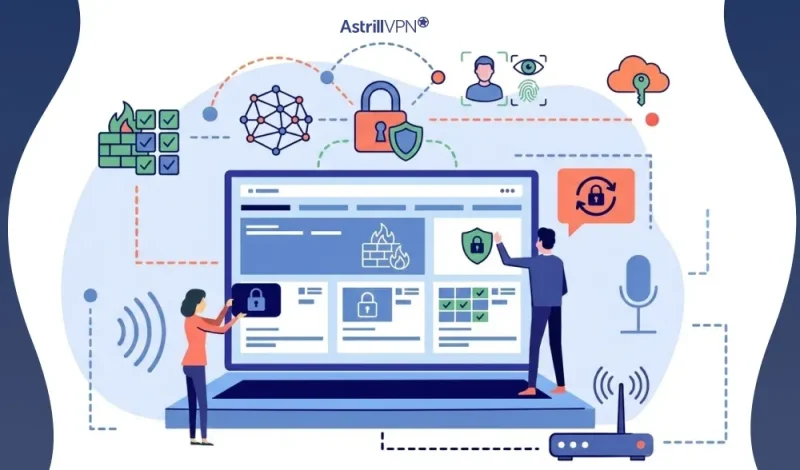
Home computers have become the control center of our digital lives: banking, shopping, work, education, and even smart home controls all run through them. That convenience also makes personal devices a prime target for cybercriminals. From silent spyware to aggressive ransomware, threats today are smarter, faster, and often invisible.
You don’t need to be a tech expert to stay safe. With the proper habits, tools, and awareness, you can dramatically reduce your risk. This guide explains home computer security, how hackers and viruses attack, and steps to protect your computer effectively.
Table of Contents
Understanding Home Computer Security
Home computer security refers to the tools, settings, and behaviors that protect your personal computer from unauthorized access, malware, data theft, and privacy invasion. It covers everything from antivirus software and firewalls to password hygiene and safe browsing habits.
Why Personal Computer Security Matters?
Unlike corporate systems, home computers often lack professional monitoring. Hackers know this, which is why individuals are frequently targeted through phishing emails, malicious downloads, fake updates, and compromised Wi-Fi networks. A single breach can lead to identity theft, financial loss, and total data wipeout.
Common threats to Home Computers
Home computers face a wide range of cyber threats, many of which are designed to stay hidden while stealing data and damaging systems. Understanding these threats is the first step toward protecting your device and personal information.
Viruses
Computer viruses attach themselves to legitimate files and programs and spread when those files are opened. They can corrupt data, slow down your system, and even render it unusable.
Malware
Malware is a broad term for malicious software, including viruses, worms, and trojans. It is often installed unknowingly through unsafe downloads, infected websites, and email attachments.
Ransomware
Ransomware encrypts your files and demands payment to restore access. Home users are frequent targets because they often lack proper backups and advanced security defenses.
Spyware
Spyware secretly monitors your activity, tracking keystrokes, browsing habits, and personal data. It can lead to identity theft, financial fraud, and serious privacy violations.
Phishing Attacks
Phishing tricks users into revealing sensitive information through fake emails, messages, and websites. These attacks often impersonate banks, delivery services, and well-known companies.
Trojans
Trojans disguise themselves as legitimate software but, once installed, open the door for hackers. They can allow remote access, steal data, and install additional malware.
Keyloggers
Keyloggers record everything you type, including passwords and credit card numbers. They often run silently in the background, making them difficult to detect.
Unsecured Wi-Fi Networks
Weak home Wi-Fi networks allow attackers to intercept data and gain access to connected devices, putting your entire home network at risk.
Outdated Software
Old operating systems and applications contain known security vulnerabilities. Hackers actively scan for devices running outdated software to exploit these weaknesses.
Adware
Adware floods your computer with unwanted ads and pop-ups. While often seen as less dangerous, adware can slow down your system and sometimes lead to more serious infections.
Social Engineering Attacks
These attacks rely on human error rather than technical flaws. Hackers manipulate users into installing malware and sharing sensitive information by creating urgency.
Key Home Computer Security Statistics
- Over 60% of malware infections start with phishing emails and malicious links
- 1 in 3 home users experience some form of malware annually
- More than 80% of hacking incidents involve weak passwords
- Devices without security updates are 3× more likely to be compromised
How Can You Protect Your Home Computer?
You can protect your home computer by following these practices.
1. Keep Your System Updated
Always install operating system and software updates. Security updates fix vulnerabilities that hackers actively exploit. Turn on automatic updates for your OS, browser, and apps.
2. Use Antivirus and Anti-Malware Software
Install a trusted antivirus program with real-time protection. It helps detect viruses, ransomware, spyware, and malicious websites before they harm your system.
3. Enable Your Firewall
A firewall blocks unauthorized access to your computer. Make sure the built-in firewall on your system is enabled to prevent remote attackers from connecting.
4. Use Strong, Unique Passwords
Avoid using the same password everywhere. Create long, unique passwords for each account, and consider using a password manager to store them securely.
How to Protect Your Computer From Hackers and Viruses?
Protecting your computer from hackers and viruses requires a combination of security tools, safe online behavior, and regular system maintenance.
Keep Your Operating System and Software Updated
Software updates fix security vulnerabilities that hackers exploit. Enable automatic updates for your operating system, browsers, and applications to ensure you always have the latest security patches.
Install Trusted Antivirus and Anti-Malware Software
Antivirus software provides real-time protection against viruses, ransomware, spyware, and other malicious programs. Keep the software up to date and run full system scans regularly to catch threats early.
Enable the Built-In Firewall
A firewall acts as a barrier between your computer and the internet, blocking unauthorized access. Make sure the firewall on Windows or macOS is always enabled.
Use Strong and Unique Passwords
Weak passwords make it easy for hackers to break into accounts. Use long, complex passwords for each service, and consider a password manager to store them securely.
Turn On Two-Factor Authentication (2FA)
Two-factor authentication adds an extra layer of security by requiring a second verification step, such as a code sent to your phone. This helps protect accounts even if your password is stolen.
Be Careful With Emails and Downloads
Phishing emails and malicious downloads are standard attack methods. Avoid clicking unknown links, opening unexpected attachments, and downloading software from unofficial websites.
Secure Your Internet Connection
Protect your home Wi-Fi network with strong encryption (WPA2 or WPA3), change default router passwords, and keep router firmware updated to prevent hackers from accessing your network.
Use a VPN for Added Protection
A VPN encrypts your internet traffic, making it harder for hackers to intercept your data. Using AstrillVPN is especially useful when using public and shared Wi-Fi networks.
Enable Spyware Protection
Spyware can secretly monitor your activity and steal personal information. Enable built-in spyware protection and perform regular scans to detect and remove hidden threats.
Back Up Your Data Regularly
Regular backups protect your files in the event of malware infections, system failures, and ransomware attacks. Use an external drive and secure cloud storage for backups.
Watch for Signs of Infection
Common signs of malware include slow system performance, frequent pop-ups, browser redirects, and unfamiliar programs running in the background. If you notice these signs, run a full security scan immediately.
Personal Computer Security Best Practices
Protecting a personal computer requires more than just installing antivirus software. The following best practices help create multiple layers of defense, reducing the risk of hacking, malware infections, and data theft.
Keep Your Operating System and Applications Updated
Regular updates fix security vulnerabilities that attackers exploit. Enable automatic updates on your operating system, web browsers, and commonly used software to stay protected against the latest threats.
Use Reliable Antivirus and Anti-Malware Software
Install trusted antivirus software with real-time protection. This helps detect viruses, ransomware, spyware, and other malicious programs before they can harm your system.
Enable the Built-In Firewall
Firewalls monitor network traffic and block unauthorized access. Ensure the firewall on Microsoft Windows or macOS is turned on at all times.
Create Strong and Unique Passwords
Avoid weak passwords; use long, complex ones for each account, and consider a password manager to store and generate them securely.
Turn On Two-Factor Authentication (2FA)
Two-factor authentication adds an extra layer of security by requiring a second form of verification, such as biometric authentication.
Limit User Privileges
Use a standard user account for everyday tasks and reserve administrator access for system changes. This limits the damage malware can cause if your computer is compromised.
Be Cautious With Emails and Downloads
Phishing emails and malicious downloads are standard attack methods. Avoid clicking suspicious links, opening unknown attachments, and downloading software from unofficial sources.
Secure Your Home Network
Protect your Wi-Fi with strong encryption (WPA2 or WPA3), change the default router credentials, and keep the router firmware updated to prevent network-based attacks.
Enable Spyware and Privacy Protection
Spyware can silently track your activity and steal personal data. Turn on built-in spyware protection, review app permissions, and run regular system scans.
Back Up Important Data Regularly
Maintain regular backups to an external drive and a secure cloud storage service. Backups protect your data from ransomware attacks, hardware failures, and accidental deletion.
Monitor for Security Warning Signs
Slow performance, frequent pop-ups, browser redirects, and unfamiliar programs may indicate a security issue. Run a full system scan if you notice these signs.
Conclusion
Protecting your home computer isn’t about one magic tool; it’s about layers of defense. Strong passwords, updated software, antivirus protection, secure networks, and intelligent online behavior all work together to keep threats out. Cybercriminals look for easy targets. By following the steps in this guide, you make your personal computer much more challenging to compromise while protecting your data, privacy, and peace of mind.
FAQs
Here are some frequently asked questions.
Yes. A VPN encrypts your internet traffic, protecting your data from hackers, ISPs, and unsecured Wi-Fi networks. It’s essential if you work remotely, shop online frequently, or use public Wi-Fi. Most attacks rely on tricking users rather than breaking systems directly.
Hackers typically gain access through:
Phishing emails and fake websites
Malware hidden in downloads
Exploiting outdated software
Stolen passwords
Unsecured Wi-Fi networks
Spyware protection tools monitor hidden tracking software that silently steals data. Enable built-in protections, keep anti-spyware software updated, and regularly scan your system. Blocking spyware helps prevent identity theft and unauthorized surveillance.
No, using one account for all activities increases risk. If malware infects that account, it may gain full system access. Use separate accounts for daily use and administrative tasks to reduce the potential for damage.
If you notice these signs, disconnect from the internet and run a full security scan immediately. Common warning signs include:
Sudden slow performance
Unexpected pop-ups or ads
Browser redirects
Programs opening and closing on their own
Unusual network activity

Secure your privacy instantly. Try AstrillVPN with zero risk.
About The Author


No comments were posted yet