
How to Check for Malware on Mac and Remove It Safely

Arsalan Rathore

Mac systems include built-in security protections, but they are not immune to malware. Threats targeting macOS have increased steadily, with attackers distributing adware, spyware, credential stealers, and remote access tools designed specifically for Apple devices. These threats often operate quietly, making detection difficult without deliberate checks.
Knowing how to check for malware on Mac is essential for maintaining system security and protecting personal data. Malware can monitor activity, alter browser behavior, weaken system settings, and transmit information without obvious warning signs. Routine inspections and proper malware scans on Mac help identify these risks before they escalate.
This guide explains how to scan a Mac for malware, how to detect suspicious behavior, and how to respond if an infection is found. It focuses on practical methods that allow users to perform an effective malware check on Mac using both built-in macOS features and trusted security tools.
Table of Contents
5 Signs Your Mac Might Be Infected
Malware on Mac rarely announces itself. In most cases, it blends into normal system activity, quietly running in the background while collecting data, injecting ads, or abusing system resources. That is what makes early signs so important. Your Mac often tells you something is wrong long before any obvious damage appears.
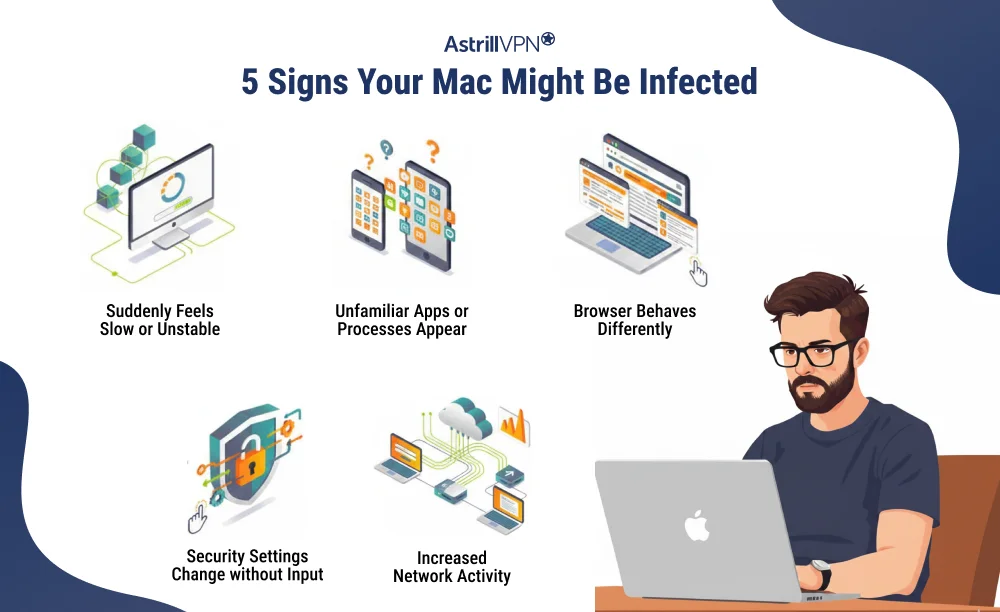
Here are some of the most common warning signals that may indicate malware on your Mac.
1, Your Mac suddenly feels slow or unstable
If your Mac starts lagging during simple tasks, overheating without reason, or freezing more often than usual, hidden background processes could be consuming CPU and memory. Malware often runs silently, using system resources to communicate, scan, or execute tasks without your knowledge.
2. Unfamiliar apps or processes appear
Seeing software you do not remember installing is a major red flag. The same applies to strange process names in Activity Monitor. Many Mac malware strains disguise themselves as system services to avoid suspicion.
3. Your browser behaves differently
Unexpected homepage changes, search engines switching on their own, constant redirects, or intrusive pop ups are classic signs of adware and browser hijackers. These infections are common on macOS and are often the first visible stage of deeper compromise.
4. Security settings change without your input
If firewall settings, privacy permissions, or system preferences are modified without your action, malware may be attempting to weaken built-in protections to maintain access.
5. Increased network activity when you are doing nothing
A Mac that constantly sends or receives data while idle may be communicating with external servers. This behavior is common in spyware, botnet malware, and remote access trojans.
How to Check for Malware on Mac?
Checking your Mac for malware is best done in a sequence of simple actions. Each step helps uncover suspicious files, processes, or behavior that could indicate a compromise. Follow these steps one at a time to perform an effective malware check on Mac.
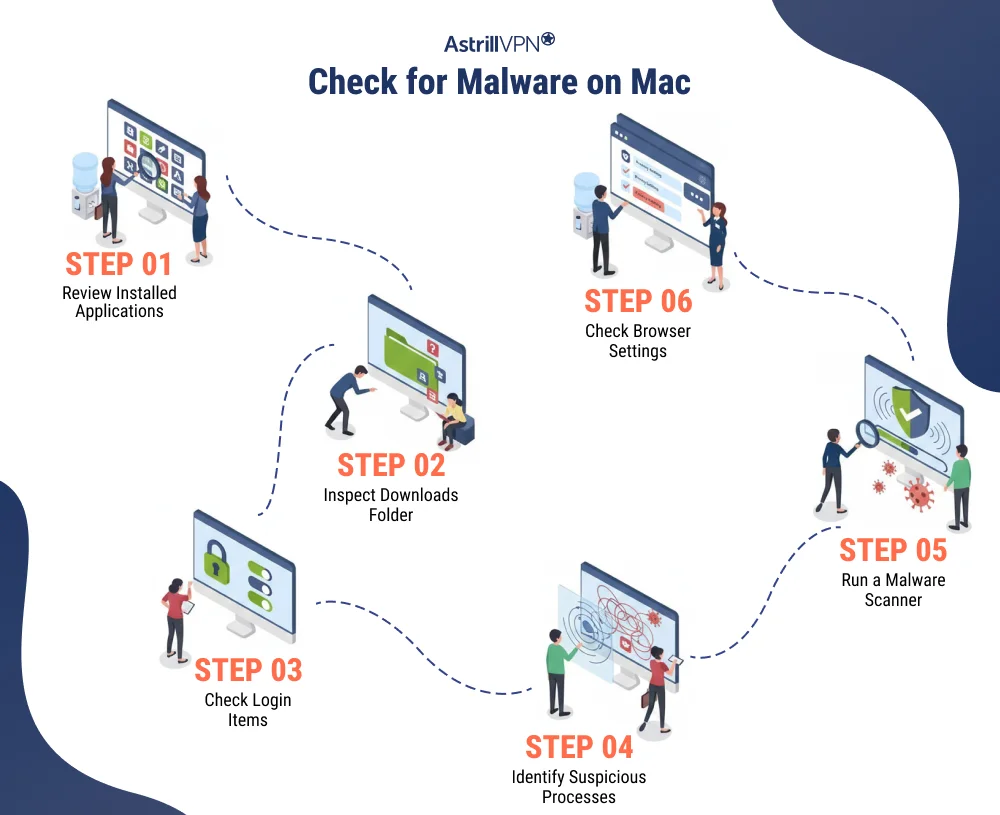
Step 1: Review Installed Applications
Begin by looking at all installed software on your Mac. Malware often arrives disguised as a standard app.
- Open Finder and select Applications.
- Scroll through the list and look for apps you do not recall installing.
- If you identify an app that seems unfamiliar or unnecessary, click it and select Move to Trash.
- Empty the Trash to remove it from your system.
Step 2: Inspect Your Downloads Folder
Malware usually needs to be downloaded to your Mac to run.
- Open your Downloads folder in Finder.
- Look for files or installers you do not recognize.
- Select anything suspicious and move it to the Trash.
- Empty the Trash to remove it completely.
Step 3: Check Login Items
Malware can configure itself to run automatically when you start your Mac.
- Click the Apple icon at the top left and choose System Settings.
- Go to General, then Login Items.
- Review the list under Open at Login.
- Select unfamiliar items and remove them from the login list.
Step 4: Identify Suspicious Processes
Use Activity Monitor to find processes that could be malware running in the background.
- Open Finder → Applications → Utilities → Activity Monitor.
- Look at the CPU and Memory tabs for any process using excessive resources.
- If a process looks unfamiliar, search its name online to confirm its legitimacy.
- Quit any confirmed malicious processes, then locate and delete related files.
Step 5: Run a Malware Scanner
Automated scanning tools are designed to detect malware that manual inspection might miss.
- Install a reputable on-demand malware scanner from a trusted source.
- Run a full system scan.
- Review any threats the scan identifies and follow the tool’s removal instructions.
- After cleanup, restart your Mac to ensure changes take effect.
Step 6: Check Your Browser Settings
Malware can affect browsers, redirect traffic, or install extensions without permission.
- Open each browser you use.
- Go to settings and review installed extensions. Remove any you do not recognize.
- Check the homepage and default search engine settings for unexpected values.
How to Remove Malware from Mac
If you have identified malware on your Mac, follow the steps below to remove it safely. Each step targets a common infection vector and helps ensure the threat is entirely eliminated.
Step 1: Restart in Safe Mode
Booting in Safe Mode prevents most malware from starting automatically.
On Intel Macs:
- Shut down your Mac.
- Press the power button, then immediately hold the Shift key.
- Release Shift when you see the login screen.
On Apple silicon Macs:
- Shut down your Mac.
- Press and hold the power button until startup options appear.
- Select your startup disk and hold Shift.
- Click Continue in Safe Mode.
- You will see “Safe Boot” on the login screen once the Mac starts.
Step 2: Identify and Quit Suspicious Processes
Use Activity Monitor to stop malware running in the background.
- Open Finder → Applications → Utilities → Activity Monitor.
- Check the CPU and Memory tabs for unusual activity.
- Select any suspicious process.
- Click the X button to quit it.
- Then delete the associated file in Finder and empty the Trash.
Step 3: Run a Malware Scanner
A dedicated scanner finds and removes hidden threats.
- Download and install a reputable on-demand malware scanner.
- Run a full system scan.
- Review scan results.
- Use the scanner’s removal option to delete confirmed threats.
Step 4: Check and Clean Browser Settings
Some malware operates inside browsers or installs unwanted extensions.
In Safari:
- Open Safari → Preferences → General.
- Check and correct the homepage address.
- Go to the Extensions tab.
- Uninstall unfamiliar extensions.
In Chrome:
- Open Window → Task Manager.
- Look for extensions using high CPU or memory.
- Go to Window → Extensions and remove suspicious ones.
Step 5: Stay Offline Until Cleanup Completes
While removing malware, it is safest to stay offline. Disconnecting from the internet prevents malware from sending data out or downloading more malicious components. You can turn off Wi-Fi or unplug Ethernet until the removal steps are complete.
Step 6: Change Important Passwords
Once the malware has been removed, change your passwords for sensitive accounts, including email, cloud services, banking, and social media. Attackers may have captured credentials if keylogging malware was present.
How to Detect Malware on Mac Like a Pro (for Advanced Users)
Standard scans catch most threats, but advanced malware often hides deeper in the system, blends into legitimate processes, or operates only at specific times. For users who want deeper visibility, the methods below provide a more professional approach to detecting malware on Mac.
Monitor system behavior and resource usage
Advanced detection starts with observing how your Mac behaves over time.
Open Activity Monitor and regularly review:
• CPU usage for unknown or constantly running processes
• Memory usage that grows without active applications
• Disk activity when the system is idle
• Energy impact from background services
Professionals look for patterns, not just spikes. A process that quietly consumes resources every day is often more suspicious than a short burst of usage. Click any unfamiliar process and inspect its name, location, and parent process. Legitimate system services usually reside inside system folders and are well documented.
Inspect running services and background jobs
Many macOS malware strains persist using background launch agents and daemons.
Check these locations in Finder:
• ~/Library/LaunchAgents
• /Library/LaunchAgents
• /Library/LaunchDaemons
Look for files with random names, misleading labels, or recent creation dates that match when problems started. Opening these folders allows advanced users to identify software that launches silently at startup or runs without a visible app.
Analyze network activity
Malware often communicates with remote servers.
Open Activity Monitor → Network and observe which processes are sending or receiving data.
Look for:
• unknown processes using constant outbound traffic
• connections when no apps are actively online
• repeated data spikes from background services
Professionals also use firewall logs or network monitoring tools to identify unusual destinations or persistent outbound connections. Unexplained traffic is one of the strongest indicators of spyware, botnet malware, or remote access tools.
Review system logs and security events
macOS logs record application behavior, system changes, and security activity.
Open the Console app and review:
• repeated system errors
• blocked or failed security processes
• unknown services launching at startup
• unexpected permission requests
Track file and configuration changes
Advanced malware frequently modifies system areas to maintain control.
Professionals check for:
• new profiles in system management settings
• unexpected configuration changes
• new certificates or trusted services
• altered browser and network settings
Validate findings with multiple scanning tools
Professional detection does not rely on a single scan. Running a second malware scan using a different reputable tool helps confirm:
• whether threats are legitimate
• whether hidden components remain
• whether system modifications persist
Tips to Prevent Malware on Mac
Preventing malware is always easier than removing it. Most Mac infections happen because of unsafe downloads, malicious websites, outdated software, or exposed network connections. The practices below significantly reduce the risk of malware reaching your system.
Keep macOS and apps updated
Apple regularly releases security patches that fix vulnerabilities exploited by malware. Running outdated software leaves known entry points open. Enable automatic updates and regularly check for system and application updates.
Download software only from trusted sources
Many Mac infections arrive through fake installers, cracked software, and unofficial app stores.
Only install software from the Mac App Store or verified developer websites. Avoid pop up installers, fake update alerts, and unknown download portals.
Pay attention to permission requests
Modern macOS malware often abuses system permissions instead of exploiting technical flaws.
Be cautious when apps request access to full disk control, accessibility features, system settings, screen recording, or browser extensions. If the request does not clearly match the app’s purpose, deny it.
Use a reputable malware scanner
Even careful users encounter malicious files through email attachments, compromised websites, or infected downloads. Running regular malware scans helps detect threats early and remove hidden components before they cause damage.
Secure your browsing and network connections with a VPN
Many Mac infections begin at the network level through malicious websites, fake updates, or traffic interception on unsecured networks.
Using a trusted VPN adds an essential layer of protection by encrypting your internet traffic and reducing exposure to malicious redirects, injected content, and compromised public Wi-Fi networks. A secure VPN connection helps prevent attackers from tampering with downloads or monitoring traffic that can be used to deliver malware.
For users who frequently connect on public or shared networks, a privacy-focused VPN such as AstrillVPN strengthens the first line of defense by protecting traffic before it ever reaches the device.
Avoid clicking unknown links and attachments
Email attachments and phishing messages remain among the most common methods of malware delivery. Do not open files or links from unknown senders. Treat unexpected documents, invoices, and account warnings with caution.
Back up your Mac regularly
Backups do not prevent malware, but they protect you from its consequences.
Keeping current backups allows you to recover quickly if malware corrupts files, steals data, or forces a system reset.
FAQs
Common signs include slow system performance, frequent freezing, unexpected pop-ups, browser redirects, unfamiliar apps or extensions, high CPU or memory usage when idle, and system settings changing without your input. Some malware also causes increased network activity or repeated security warnings.
Yes. Malware often runs background processes that consume CPU power, memory, and disk resources. This can make a Mac feel slow, cause apps to crash, reduce battery life, and increase fan activity even when no heavy programs are running.
Malware typically reaches a Mac through fake software updates, bundled installers, cracked software, malicious email attachments, infected websites, and browser extensions. Public Wi-Fi networks and phishing links are also common delivery channels.
macOS includes built-in security protections, but it is not immune to malware. Threats designed specifically for Macs exist and continue to evolve. While Apple blocks many known threats, new malware strains can bypass built-in defenses, making user awareness and regular checks essential.
The most common macOS threats include adware, browser hijackers, spyware, credential stealers, remote access trojans, and potentially unwanted programs. These are often designed to track activity, inject ads, redirect traffic, or quietly collect personal information.

Secure your privacy instantly. Try AstrillVPN with zero risk.
About The Author


No comments were posted yet