


How To Remove Malware From iPhone: Step-by-Step Guide

iPhones have a pretty solid security setup, which is why it’s not super common to see major malware issues like you might on other devices. But that doesn’t mean it can’t happen. Stuff like targeted spyware, dodgy configuration profiles, phishing scams, and unsafe downloads can still put your iPhone at risk if the right conditions come together.
If you notice your phone is getting hot, the battery is draining way too quickly, it’s popping up ads all over the place, or just acting weird in general, it’s a good idea to look into it. Not every hiccup means you’ve got malware, but it’s always better to check rather than ignore the signs. You don’t want to risk your personal info, Apple ID, or financial details.
This guide breaks down how malware can mess with iPhones, how to tell if your device is actually compromised, and what steps to take to clean it up. Plus, you’ll get tips on how to avoid getting hit with malware again and secure your iPhone for the long haul.
Table of Contents
iPhone-specific Malware Types
Malware on an iPhone works differently from the usual infections you’d find on desktops. Thanks to Apple’s strict rules like mandatory code signing and sandboxing, plus their controlled background processes, attackers can’t just drop viruses or trojans like you’d see on Windows or Android.
Instead, threats aimed at iPhones take advantage of Apple’s own features. They might exploit built-in services, misuse enterprise functions, or target Apple ID access instead of acting like regular malware.
Here’s how these threats usually show up on iOS.
Zero-Click Spyware Exploits
The most serious iPhone threats rarely require downloads or user interaction. Instead, they exploit vulnerabilities in trusted Apple services such as iMessage or WebKit.
Pegasus, for example, leveraged flaws in Apple’s messaging infrastructure to compromise devices silently. Victims did not need to click a link or install an app. A maliciously crafted message was enough to trigger the exploit chain. More recently, Operation Triangulation demonstrated how attackers could chain together iOS kernel vulnerabilities delivered through iMessage to gain elevated privileges.
These attacks are not mass-market malware. They are highly targeted and sophisticated. What makes them distinctly iOS is their reliance on Apple’s deeply integrated communication services rather than traditional executable files.
Malicious Configuration Profiles
Configuration profiles are handy tools from Apple meant for managing devices in businesses. They help organizations manage settings such as VPN configurations, Wi-Fi rules, and device policies.
However, these profiles can also be misused. There have been cases where people were tricked into installing them through fake security alerts or phishing scams. Once these profiles are on a device, they can reroute internet traffic or install unauthorized certificates.
This kind of attack is especially tied to Apple. Other platforms don’t have configuration profiles in the same organized way, making this issue particularly relevant for iPhones.
Jailbreak-Dependent Malware
On regular iPhones, Apple’s strong security makes it tough for persistent malware to take hold. But once you jailbreak a device, those protections take a big hit.
A good example of this is the KeyRaider campaign, which specifically targeted jailbroken phones and extracted Apple ID credentials from the system keychain, affecting hundreds of thousands of users. If the device hadn’t been jailbroken, this kind of attack wouldn’t have been possible at all.
This shows just how much the iOS threat landscape changes when you remove those built-in safeguards.
WebKit-Based Browser Exploits
All browsers on iPhone are required to use Apple’s WebKit rendering engine. That uniformity simplifies the ecosystem but also means a vulnerability in WebKit affects every browser on the device.
Several past security patches from Apple addressed WebKit flaws that allowed malicious websites to execute code within the browser sandbox. While these exploits typically require additional privilege escalation to cause deeper harm, they demonstrate how browser-based threats on iOS revolve around Apple’s single rendering engine.
This platform-wide dependency is specific to iOS and shapes how browser exploits behave.
Apple ID and iCloud Targeted Attacks
Because iPhones are deeply integrated with iCloud, attackers often shift focus from infecting the device to compromising the account.
Apple ID phishing campaigns have exposed access to iCloud backups, stored credentials, synced photos, and device location data. In these cases, the phone itself may remain technically clean while the cloud ecosystem is breached.
On iOS, account compromise can be just as damaging as device-level malware. That ecosystem integration is a defining characteristic of iPhone-related threats.
What Are Some Signs of Malware on Your iPhone?
Not every performance issue on an iPhone is malware. iOS is tightly controlled, and many common complaints, such as battery drain or app crashes, are usually caused by software bugs, aging hardware, or heavy background activity.
However, certain patterns of behavior deserve closer attention, especially if they appear suddenly and without explanation.
Unusual Data Usage Spikes
A sudden increase in mobile data consumption without a clear reason can indicate background activity communicating with external servers. While some apps legitimately sync in the background, unexplained data transfers that continue even when you are not actively using your device can be a warning sign.
You can review this under Settings > Cellular to see which apps are consuming data.
Unknown Configuration Profiles or VPN Settings
iPhones allow the installation of configuration profiles for enterprise management. If you notice a profile under Settings > General > VPN & Device Management that you did not intentionally install, investigate it immediately.
Malicious profiles can redirect traffic, install root certificates, or modify DNS settings without obvious visual indicators.
Persistent Browser Redirects or Fake Security Alerts
If Safari repeatedly redirects you to suspicious pages or displays urgent warnings claiming your device is infected, this is often browser-based manipulation rather than a system-wide infection.
These messages are typically designed to pressure you into installing untrusted apps or granting permissions.
Repeated Apple ID Login Prompts
Unexpected Apple ID verification requests, especially when you are not actively signing in, can signal attempted account compromise.
If you receive multiple authentication prompts, it may indicate someone is trying to access your Apple ID credentials.
Device Overheating Without Heavy Usage
iPhones can heat up during gaming or video streaming. However, consistent overheating while idle or during light activity may suggest abnormal background processing.
When paired with unusual battery drain or data usage, this becomes more concerning.
Unfamiliar Apps With Excessive Permissions
Some apps may ask for permissions that don’t relate to what they do, though this is rare due to App Store reviews. For example, if a simple utility app asks for constant location access or microphone access without a good reason, you should be cautious.
Review app permissions under Settings > Privacy & Security.
Can iPhones Really Get Viruses?
Earlier this year, it was reported that new iPhone Malware that steals facial recognition data is on the loose. This trojan stole iPhone facial recognition data to target users’ bank accounts. So yes, even though you can say that your iPhone is safer than Android devices, we cannot vouch that it is entirely immune to malware and viruses. Although uncommon, iPhones can be subject to malware and viruses if, for example, their iPhone was jailbroken or you’ve been a target of spear phishing attacks. Here are some realistic iPhone threats that you need to be aware of:
1) Websites
You may have stumbled on a sketchy website with a popup display that states, “Viruses detected on iPhone.” The website or the malware uses scareware strategies to trick you into making bad decisions and divulging sensitive or confidential information. Be cautious of suspicious websites trying to breach your iPhone security.
2) Smishing
Smishing is similar to phishing attacks, as it involves fake messages that appear legitimate. Instead, it involves social engineering tactics that trick vulnerable users into sharing confidential information and opening malicious links or websites. iPhone users should be vigilant when receiving unknown messages or offers that appear too good to be tried through text messages.
3) Jailbreaking
Jailbreaking your iPhone device puts you at a greater risk of getting infected with malware. People usually jailbreak their iPhones to bypass particular restrictions and gain full control of the operating system. However, a jailbroken iPhone that lacks security updates and reliable antivirus software is more prone to being less secure and subject to malware attacks.
4) Pharming Scams
Pharming is phishing on a larger scale. It involves redirecting users browsing the web to scam websites that look as real as legitimate websites. When you log into these fake websites, your passwords and other account credentials get compromised, and your iPhone has a dangerous malware infection.
5) Malware
Other than viruses that can corrupt your iPhone if you aren’t too careful, different types of Malware can also infiltrate your iPhone, including adware, spyware, and trojans, which can steal the iPhone user’s passwords, credit card details, PINs, and other private and sensitive information.
How Can You Remove Malware From Your iOS Device?
Now that you’re aware of the many dangers of your iPhone being infected with malware and the signs you need to look for when figuring out if your iPhone has been compromised, we can now get into the nitty-gritty of how you can easily remove them from your device to prevent further damage. Here’s how to remove malware from iPhone:
1) Restart Your iPhone
The easiest way to remove malware from your device is to restart it. Hold the top power button to restart your iPhone until you see the power-off slider pop up. Drag the slider and turn off your iPhone or iPad. Wait for a few seconds, then restart your iPhone by pressing the power button again and seeing the Apple logo appear. Check and see if that helps remove malware from your device.
2) Remove Suspicious Apps
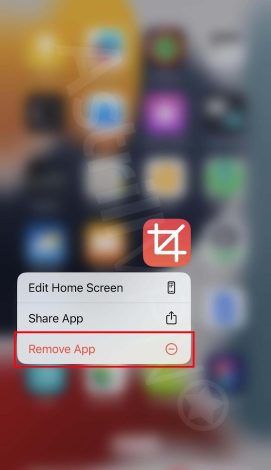
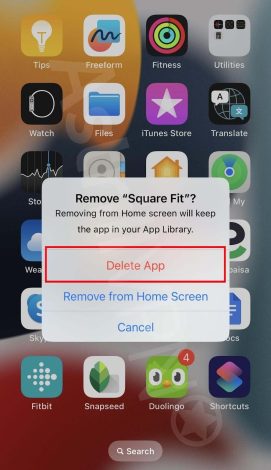
If there are suspicious apps that you don’t remember installing, and you have many other apps pop up, then you need to remove them from your iPhone as these are malicious apps that have sneaked their way and want to compromise your device. Here’s how you can remove these suspicious and sketchy apps from your device:
- Touch and hold the suspicious app on the Home Screen, click Remove App, then Remove from Home Screen to remove it from your Home Screen, or Delete App to delete it from your iPhone. This step will remove these sketchy websites from your iPhone.
3) Clear Cache & Browser History
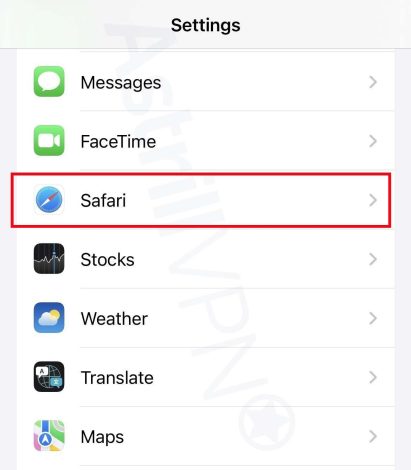
Another way to remove Malware from your device is to clear your browser cache and history. You may have unintentionally wound up on an infected website, which would have downloaded malware to your device. By clearing your browser history and cache, you can eliminate the Malware on your device. Here’s how you can do it:
- Go to Settings > Safari.
- From there, click Clear History and Website Data.
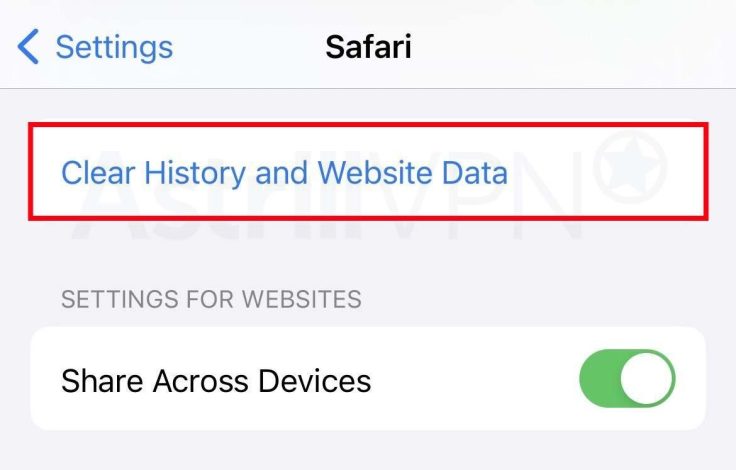
- The button will be gray if no history or website data needs to be cleared.
4) Update Your iPhone
By updating your iPhone’s operating system to the latest version, you can easily remove malware from your device while simultaneously preventing future viruses, malware attacks, and other online threats. Here’s how you can update your iPhone:
- You need first to back up your device on iCloud or your computer.
- Go to Settings > General and then click Software Update.
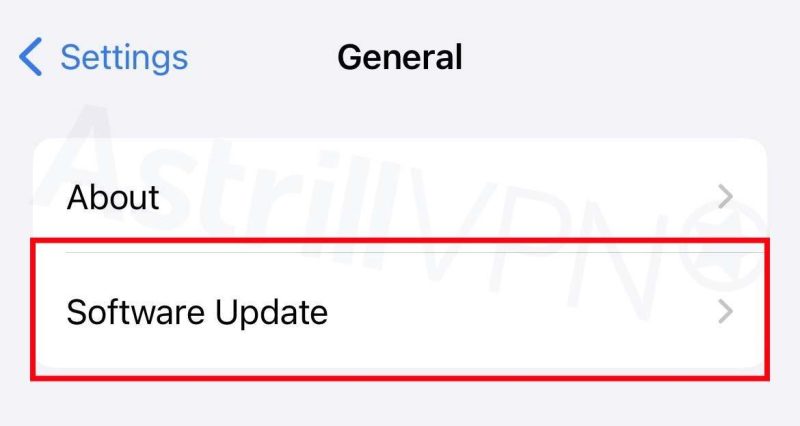
- If you see more than one software update option, click the one you’d like to install.
- Then click Install Now.
5) Install Reliable Antivirus Software
You need to install reliable antivirus software, which ensures that your device remains protected from malware attacks, viruses, and other emerging threats at all times. The antivirus software will scan your device in real time for threats like malware and remove them as soon as it detects them. When choosing antivirus software, make sure it offers strong protection without slowing down your device; it is easy to use for a person who isn’t that tech-savvy, and it is compatible with multiple operating systems, including iOS. It offers additional security features like firewalls, parental controls, and secure browsing tools.
6) Factory Reset Your iPhone
Lastly, if none of the above solutions offer any resolution, it may be time to reset your iPhone completely to remove the Malware from your device. Here’s how you can do it:
- You must ensure that all of your data and files are backed up because all of your data will get deleted when you don’t back them up while doing a factory reset.
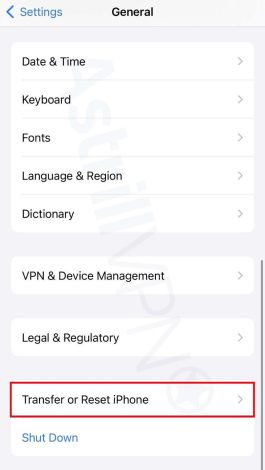
- Go to Settings > General on your iPhone and click Transfer or Reset iPhone.
- Then click Erase All Content and Settings.
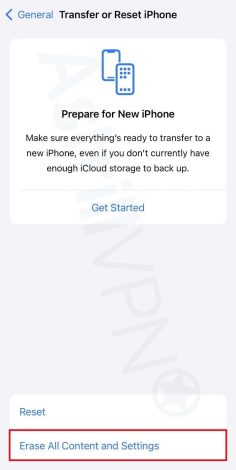
- Your iPhone will then be factory reset.
What Additional Steps Can You Take To Protect Your iPhone?
When you remove malware from iPhone, the problem doesn’t end there. You need to ensure that you can protect your device for the long haul so that it doesn’t become subject to malware attacks and viruses. Here are some additional tips and tricks that will help you protect your iPhone:
1) Use AstrillVPN
Use AstrillVPN when you’re on a public network. AstrillVPN encrypts your internet traffic and hides your IP address, ensuring no outside threats can intercept your sensitive and confidential data. Additionally, AstrillVPN offers a range of other essential security features, including a Kill Switch feature, Smart Mode, DNS leak protection, and AES 256 Encryption. It also provides robust encryption protocols like Wireguard, StealthVPN, and OpenVPN and adheres to a strict No Logs policy, which means it does not track your online activities when using the VPN. All your data and online activities get deleted once you log out of the VPN.
2) Avoid Jailbreaking Your iPhone
If you have an iPhone, you should avoid jailbreaking it. Jailbreaking allows malicious actors and hackers to infiltrate your device and compromise your data and files. It also removes your phone’s default Apple security settings, making it more vulnerable to malware attacks.
3) Don’t Download & Install Apps From Untrustworthy Sources
Ensure you only download apps from the Apple App Store, not other sources. Downloading apps from third-party sources can ultimately lead you to download apps that compromise your device. Verify your authenticity when downloading a device, even if it looks legitimate. Always check the app’s reviews before downloading it, as user reviews will give you an idea of whether the app is legitimate.
4) Never Click Suspicious & Unverified Links
Phishing scams are a significant reason your iPhone may get infected with malware and viruses. Whenever emails or messages appear “too good to be true,” verify their authenticity before taking any call to action. These scammers also pretend to be someone you know or trust to trick you into divulging sensitive and confidential information. Always verify that it’s the person you think is sending you those emails and messages, and never click on any suspicious links and attachments in these emails or messages, as these are what ultimately spread malware to your device.
5) Turn On Automatic Updates On Your iPhone
Turning on automatic updates ensures that your device has the latest security patches and updates, enabling you to remove malware from your device more effectively. Here’s how you can turn on automatic updates on your iPhone:
- Go to Settings > General > Software Update.
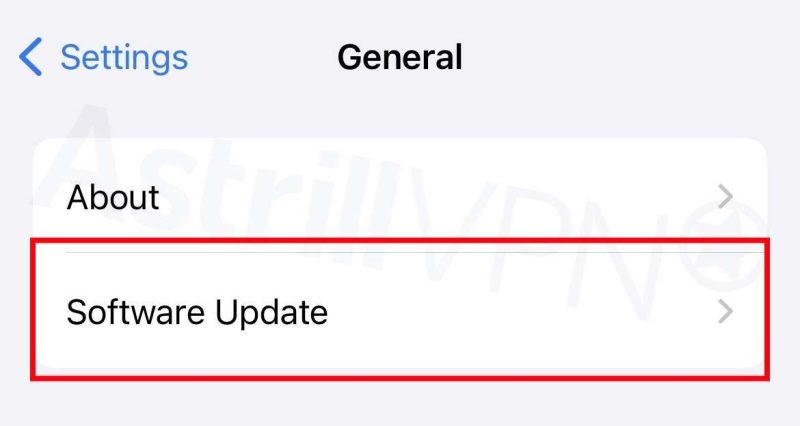
- Click Automatic Updates, and then turn on Download iOS Updates.
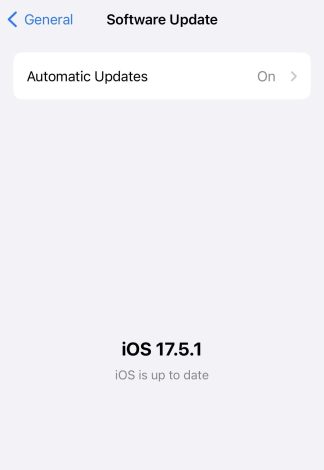
- Turn on Install iOS Updates. Your device will automatically update to the latest version of iOS.
6) Install Reliable Antivirus Software
You need to install reliable antivirus software, which ensures that your device remains protected from malware attacks, viruses, and other emerging threats at all times. The antivirus software will scan your device in real time for threats like malware and remove them as soon as it detects them. When choosing antivirus software, make sure it offers strong protection without slowing down your device; it is easy to use for a person who isn’t that tech-savvy, and it is compatible with multiple operating systems, including iOS. It offers additional security features like firewalls, parental controls, and secure browsing tools.
How Can Your iPhone Get Infected With Malware?
Before figuring out how to remove Malware from iPhone, it’s also a good idea to understand how malware enters your iOS device in the first place. Here are some of the common reasons why your iPhone may have been infected with Malware:
1) Malicious Applications
Although Apple thoroughly reviews and goes through apps before they’re released onto the Apple App Store, there are times when malicious applications may still sneak their way in. When these apps get installed on your device, they infect you with malware, compromising all your data.
2) Phishing Attacks
Clicking on malicious links in emails, messages, and websites can cause malware infections. These links trick you into divulging sensitive and confidential information and downloading malicious software on your devices.
3) Infected Websites
You may end up on a legitimate website, but it is actually a fake website used to compromise your sensitive and confidential information. Visiting these malicious websites can cause malware to be downloaded onto your device. This happens through exploit kits that can take advantage of vulnerabilities in the browser and apps.
4) Public Networks
If you’re using an unsecured public network, your iPhone is more likely to be infected with Malware because public networks are more likely to be intercepted by malicious actors. They can also expose your iPhone to man-in-the-middle attacks, where the attackers intercept your data and inject malware into your device. You can protect yourself on a public network by investing in a reliable VPN.
5) Zero-day Exploits
Zero-day exploits are vulnerabilities unknown to Apple and have not been patched. They haven’t been able to detect these security vulnerabilities yet, but malicious actors can exploit these vulnerabilities and infect your device with malware.
What Are Some Signs Of Malware On Your iPhone?
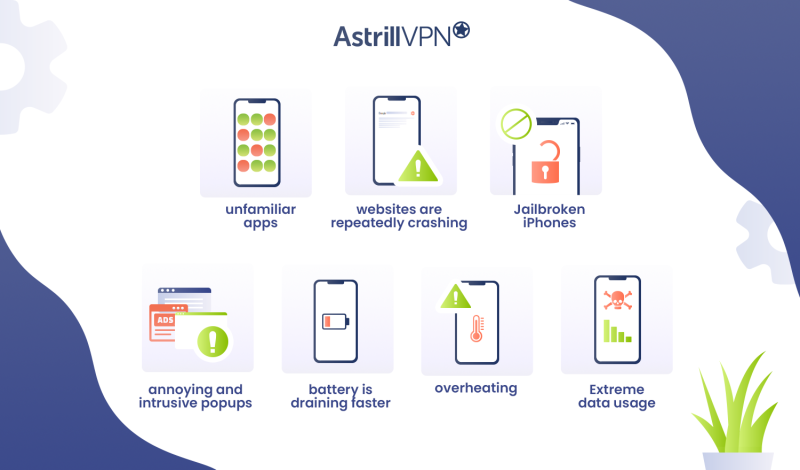
If you’re eager to ensure that your iPhone does not fall victim to malware attacks, there are a couple of important signs you should look for. Here’s how to check for malware on iPhone:
- You may have noticed unfamiliar apps on your phone. If you don’t remember installing these apps, this may be a sign of malware on your iPhone.
- You’re noticing that your websites are repeatedly crashing for no apparent reason. This suggests malware has been installed on your device.
- Jailbroken iPhones remove many of Apple’s security restrictions, making it easier for malicious actors to infiltrate your iPhone.
- You see annoying and intrusive popups on your phone, even though you aren’t using any browsers. That’s also a sign that your device has been infected with malware because of adware.
- Your battery is draining faster than usual. This is because malicious websites are using and using up the system’s resources.
- Your iPhone also begins overheating, even though you aren’t using apps or browsing websites.
- Specific types of malware, such as spyware, use a lot of phone data. Extreme data usage indicates that your iPhone has been infected with a virus.
Recent Cases Of Malware Attacks On iPhones
Here are some more examples of recent cases of malware attacks on iOS:
Operation Triangulation
Researchers at Kaspersky recently presented their findings from “Operation Triangulation,” an ongoing investigation of one of the most sophisticated iOS malware attacks. In June 2023, the malware was discovered on Kaspersky’s own devices and was found to have compromised the company’s devices since 2019. It was also designed to work on iOS versions up to 16.2. The researcher’s findings revealed that the malware exploits four zero-day vulnerabilities in the iPhone, which includes bypassing Apple’s hardware-based memory protection to obtain root-level access and installing spyware.
Remote Malware Attacks
A dangerous new malware attack was discovered on the iPhone in India and several other countries. What’s interesting is that this malware attack isn’t your normal attack but is more likely to be state-sponsored. In an email that Reuters saw, Apple had sent iPhone users a message stating that attackers had tried to gain access to the iPhone remotely and that Apple would try to help those users who were individually targeted by these spyware attacks. Apple did not acknowledge that this attack was state-sponsored; however, it did mention that these attacks were associated with state actors and private companies that develop mercenary software.
Wrapping Up
Like other operating systems, iOS devices like iPhones and iPads are also susceptible to malware. Although they’re less likely to be affected than other operating systems, there’s always the one-off chance it can happen. You must take the necessary steps to protect your iPhone from malware. This guide includes all of the essential steps you need to take to protect your device from viruses. Before you know it, malware infiltrating your iPhone will be a thing of the past, never to be seen again.
Frequently Asked Questions (FAQs)
iPhones don’t generally have or need antivirus software since Apple’s operating system has robust security protection from malware and viruses on iPhones.
Updating iOS to the latest version can help effectively remove malware from your device. However, if that doesn’t work, you can always factory reset your iPhone.
Yes, sometimes restarting your iPhone is all it takes to effectively remove malware from your device.
You can’t scan for viruses in iOS since there isn’t a virus scanner built into iOS or as a third-party app in the Apple Store. However, if you’re experiencing intrusive popups and strange messages, you can delete your browser history and website data in the Safari browser.

Secure your privacy instantly. Try AstrillVPN with zero risk.
About The Author










No comments were posted yet