


What to do if your iPhone has been hacked?

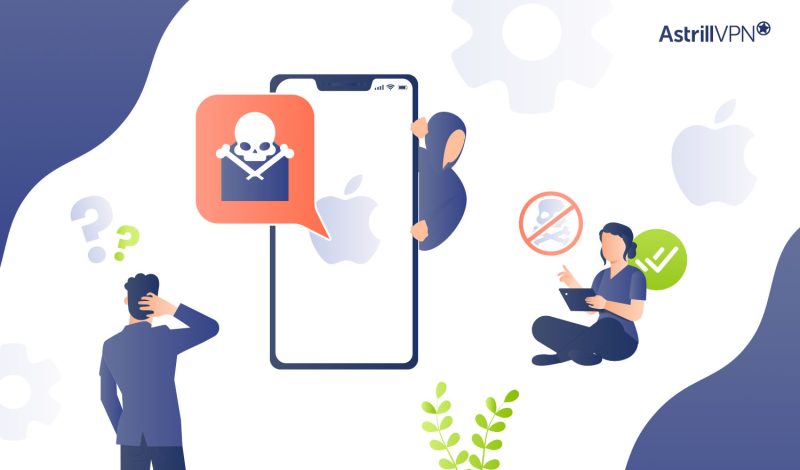
If you believe being an iPhone user means being exempt from security threats and hacking, think again. Although iOS is considered safer than Android, it still has its fair share of security vulnerabilities. Like other mobile devices, your iPhone can also fall victim to cyber-attacks without proper security measures. Once these malicious actors gain unauthorized access to your device, they can steal your data and financial details and use your data for identity theft. However, if your iPhone has been compromised, it’s not the end of the world. There are many ways to get around this issue and ensure malicious hackers cannot infiltrate sensitive and confidential data.
In this detailed guide, we will walk you through all the steps you need to ensure that hackers aren’t able to intercept your iPhone. We will also share the most common signs that your iPhone has gotten hacked and what steps you need to take to ensure it doesn’t get hacked. So, if you’re curious to unravel what to do if your iPhone has been hacked, keep reading.
Table of Contents
First, Is Your iPhone Actually Hacked?
Most people searching this have not been hacked. They have seen something alarming and want to know what it means. Rule out the two common false alarms before you wipe anything.
The “Your iPhone Has Been Hacked” Pop-Up Is a Scam
If a message appeared in Safari saying your iPhone is infected, your activity is being tracked, or you need to install a cleaner app immediately, that is a scareware ad. It is a web page, not a system alert. iOS does not warn you about viruses through the browser, and Apple never asks you to install a third-party security tool.
- Do not tap anything inside the pop-up, including Close or OK. Those buttons are part of the ad.
- Close the Safari tab from the tab switcher instead.
- Go to Settings > Safari and tap Clear History and Website Data.
- If it keeps coming back, check for a rogue configuration profile using the steps further down.
If you already installed the app it recommended, delete it, then change the password for any account you signed into while it was on your phone.
Hacked, or Just an Older iPhone?
Overheating, fast battery drain, and sluggish performance get listed as hacking signs everywhere. They are also what a three year old battery and a fresh iOS update look like. Check Settings > Battery > Battery Health & Charging first. A maximum capacity below roughly 80 percent explains most of it. A major iOS update also re-indexes photos and files for a day or two, which heats the phone and drains it.
Treat these symptoms as a hacking signal only when they appear alongside something account-level, like a login alert you did not trigger or a verification code you did not request.
Did Apple Send You a Threat Notification?
Apple sends threat notifications to people it believes have been targeted by mercenary spyware. They arrive by email and iMessage, and as a banner when you sign in to your Apple Account page. Apple has sent these to users across more than 150 countries. This is one alert worth acting on immediately. Skip the standard cleanup and go straight to the high-risk section below.
How iPhones Actually Get Hacked
Most iPhone compromises are not malware sitting on the device. They are access to the account behind it.
Apple Account Credential Theft
Phishing texts about an undelivered package, an iCloud storage problem, or a locked account are the volume play. You enter your Apple ID and the verification code on a convincing fake page, and everything in iCloud is exposed within a minute.
Malicious Configuration Profiles and MDM
A configuration profile is a settings file that can reroute your traffic, install a certificate that lets someone read your encrypted connections, and push apps from outside the App Store. These arrive through free VPN prompts, fake enterprise app stores, and streaming unlock guides.
Stalkerware and Shared Access
No exploit needed. Anyone with your passcode, or with your Apple Account credentials, can read your messages, view your photos, and track your location from their own device. Shared Apple IDs and misconfigured Family Sharing do the same thing with nothing installed at all.
SIM Swap and eSIM Hijacking
An attacker convinces your carrier to move your number onto their SIM or eSIM. Your phone drops to no service, and every SMS verification code after that goes to them. The device itself is untouched.
Zero-Click and Mercenary Spyware
Tools such as Pegasus, Predator, and Graphite can compromise a fully updated iPhone through a message the target never opens. They are expensive and tightly targeted. Ordinary users are not the customer base. Journalists, lawyers, activists, executives, and political dissidents are.
Public Wi-Fi Interception
Open networks in hotels, airports, and cafes allow anyone on the same network to monitor unencrypted traffic or run a rogue hotspot. This will not plant spyware on a current iPhone, but it is a practical way to harvest logins and session tokens.
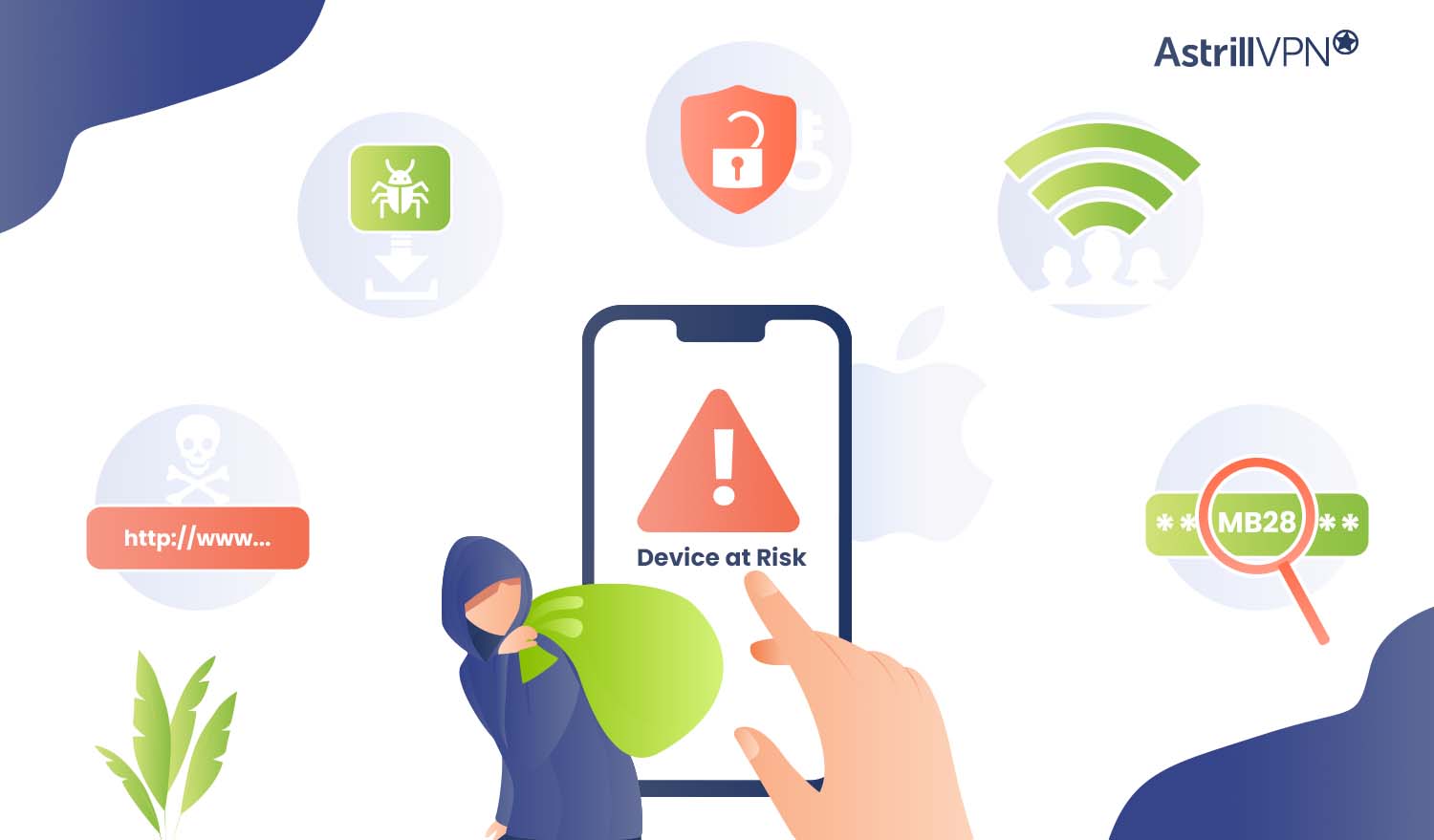
What Are The Signs To Look Out For If Your iPhone Has Been Hacked?
If you feel like your iPhone’s hacked and you have a growing suspicion, then it’s a good idea to be aware of the most common signs that it’s been compromised so that you can take timely action and remove malware and other online threats. Here are the telltale signs that your iPhone has been hacked:
1) Unrecognized Apps on your Home Screen: There are some suspicious apps on your home screen that you don’t remember installing. You should investigate and remove them from your device immediately.
2) Your Phone Is Overheating: You notice your phone is overheating, even when no processes are running in the background. Your battery is also draining faster than usual.
3) You’re Locked out of your Apple ID: Another warning sign is when you receive a notification that says your Apple ID was used to sign in to another mobile device or if any changes were made to your Apple ID or password.
4) Your Friends & Family Are Receiving Strange Messages From You: It has come to your attention that your loved ones are starting to receive strange messages. This is because malware is injected into your device, spamming your contacts with malicious links.
5) Your iPhone’s Performance Is Impacted: You may also have noticed that your device’s performance is affected. Since your device is infected with malware, it uses much processing, making your phone perform slower than usual.
6) High Data Usage: Hidden malicious software depletes your battery or processing power and drains your mobile data faster than usual.
So My iPhone Has Been Hacked – What Now?
So your iPhone’s gotten hacked, and you’re panicking. What should you do? What must you do to remove malware from your device before any further damage is done? Worry not, as we will discuss what steps you need to take to remove the hackers from your iPhone and keep your sensitive and confidential data safe and secure. Let’s get into all the specifics.
1) Remove Unfamiliar Apps
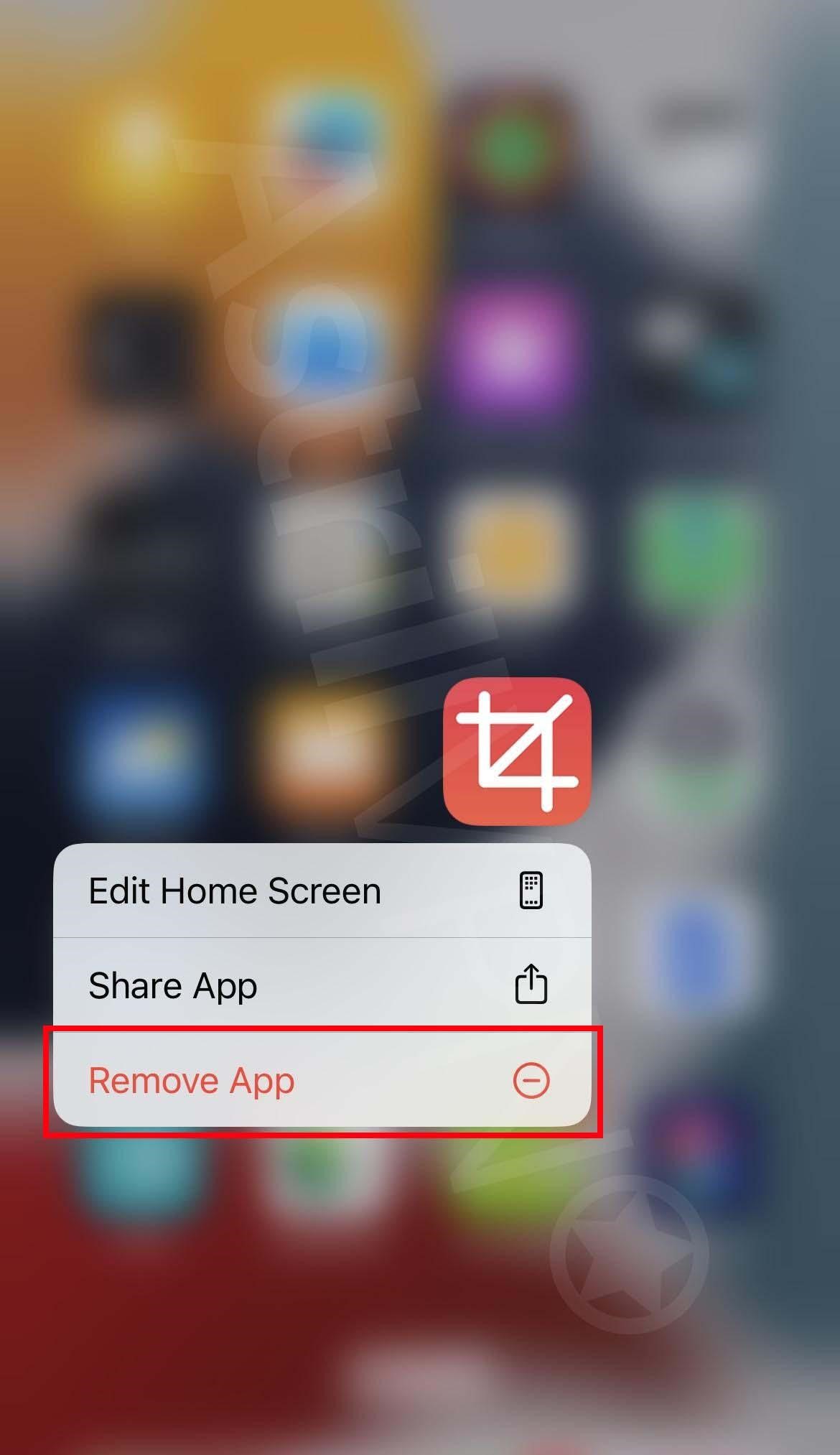
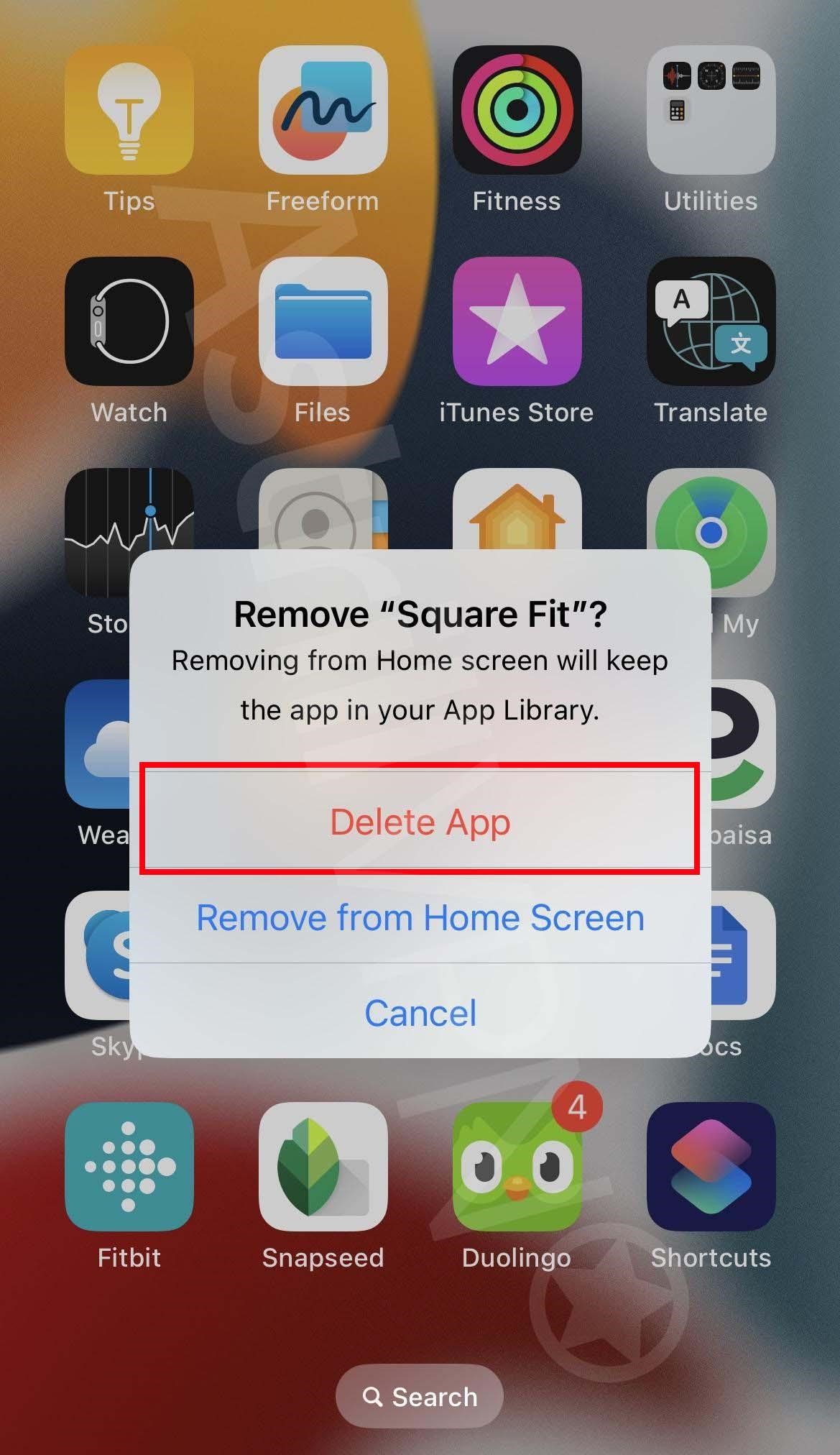
If you find any sketchy or suspicious apps, then the first thing you need to do is to remove them immediately. You can do this by going to your Home Screen and removing them. Here’s how:
- Touch and hold the app on the Home Screen, then click Remove App, and then click Remove from Home Screen to remove it from the Home Screen, or Delete App to delete it from your iPhone.
2) Clear Cache & Browser History
Your iPhone stores cached data and all the content from the websites you browse. This is because the next time you visit the same website, the cache storage allows the website to load more quickly, which helps you save time. Since we’re less likely to remove cached data, malicious actors and hackers can use them to deposit Malware. That’s why you must clear your cache and browsing history. Here’s how you can do it:
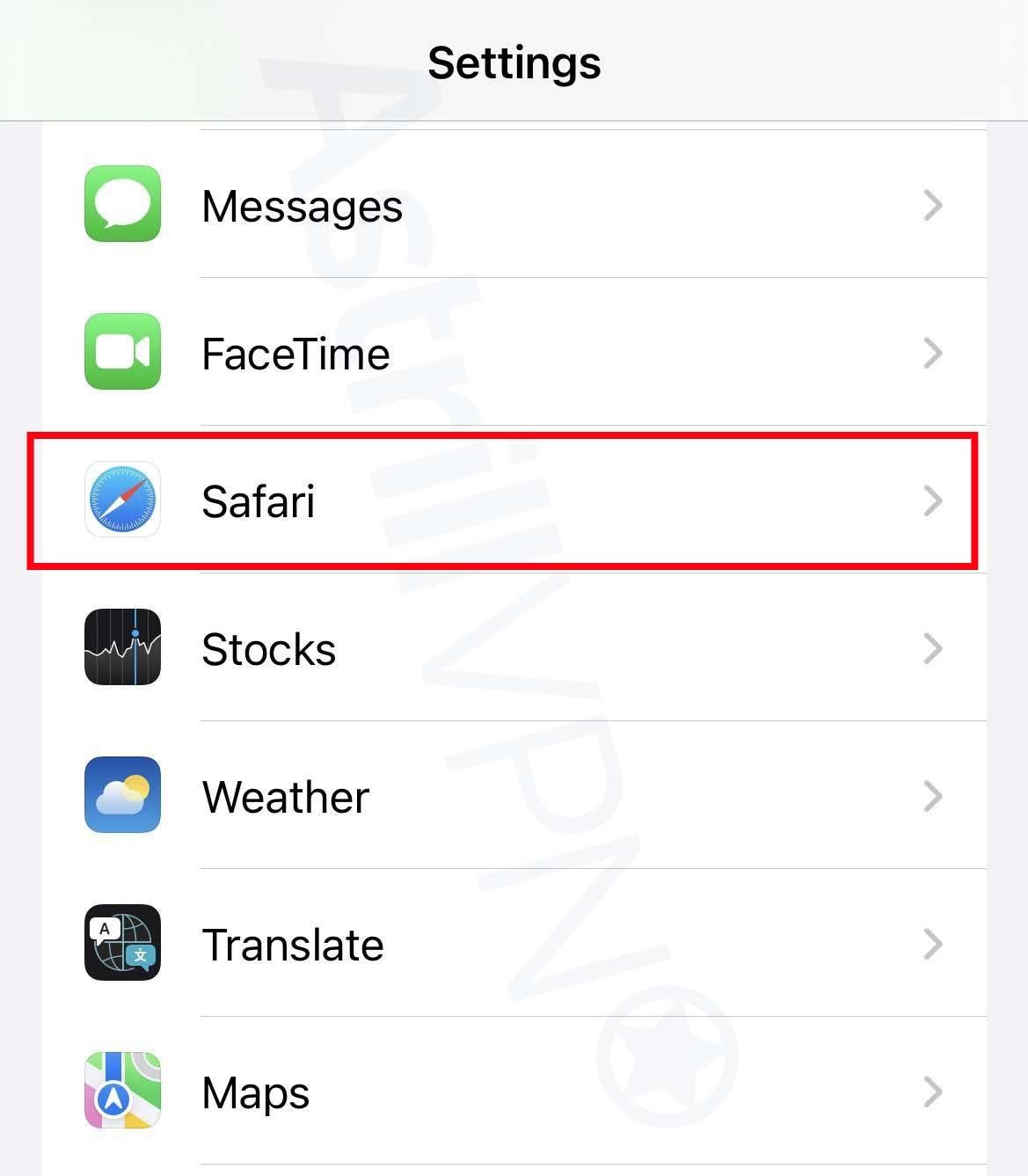
- Go to Settings > Safari.
- From there, tap Clear History and Website Data.
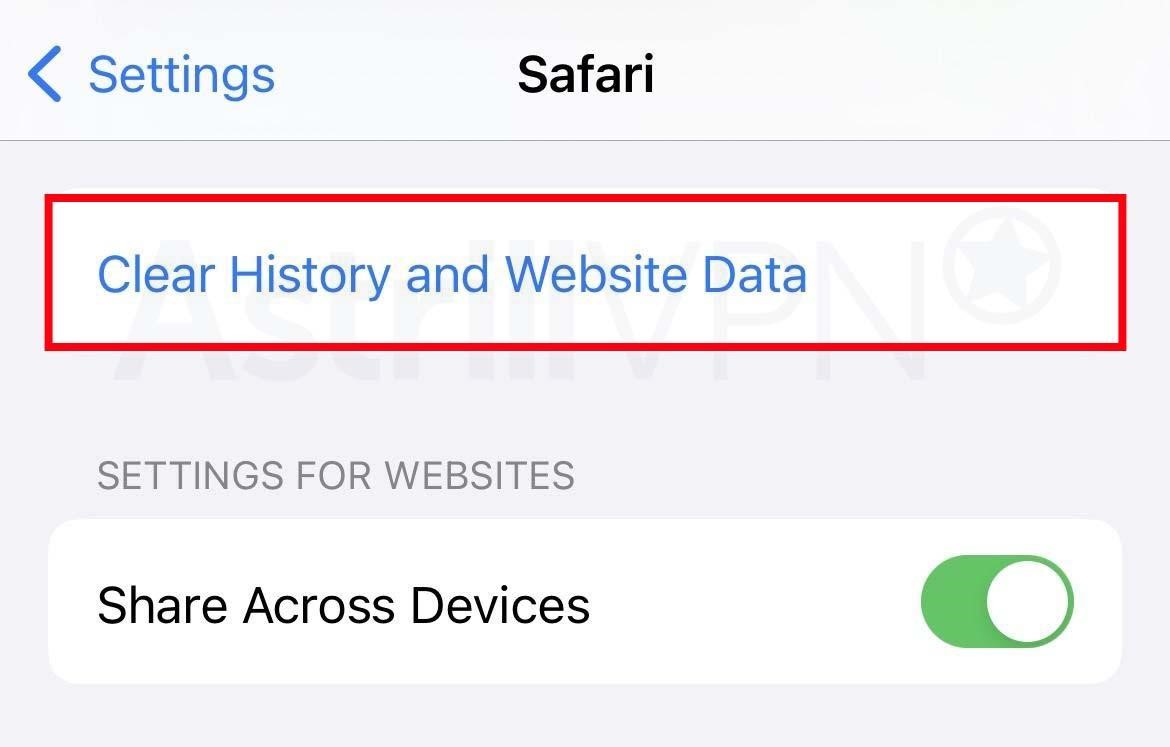
- The button will be gray if there’s no history or website data to clear.
3) Check App Permissions
Broad app permissions can be risky when a hacker has infiltrated your iPhone. Since they control the malicious apps, they can steal much of your sensitive and confidential information. Although you must give some essential app permissions, you should keep them limited to basic functionality. A photo app does not require access to your messages or microphone. You can control app tracking permissions on your iPhone.
- Go to Settings > Privacy and Security and then Tracking.
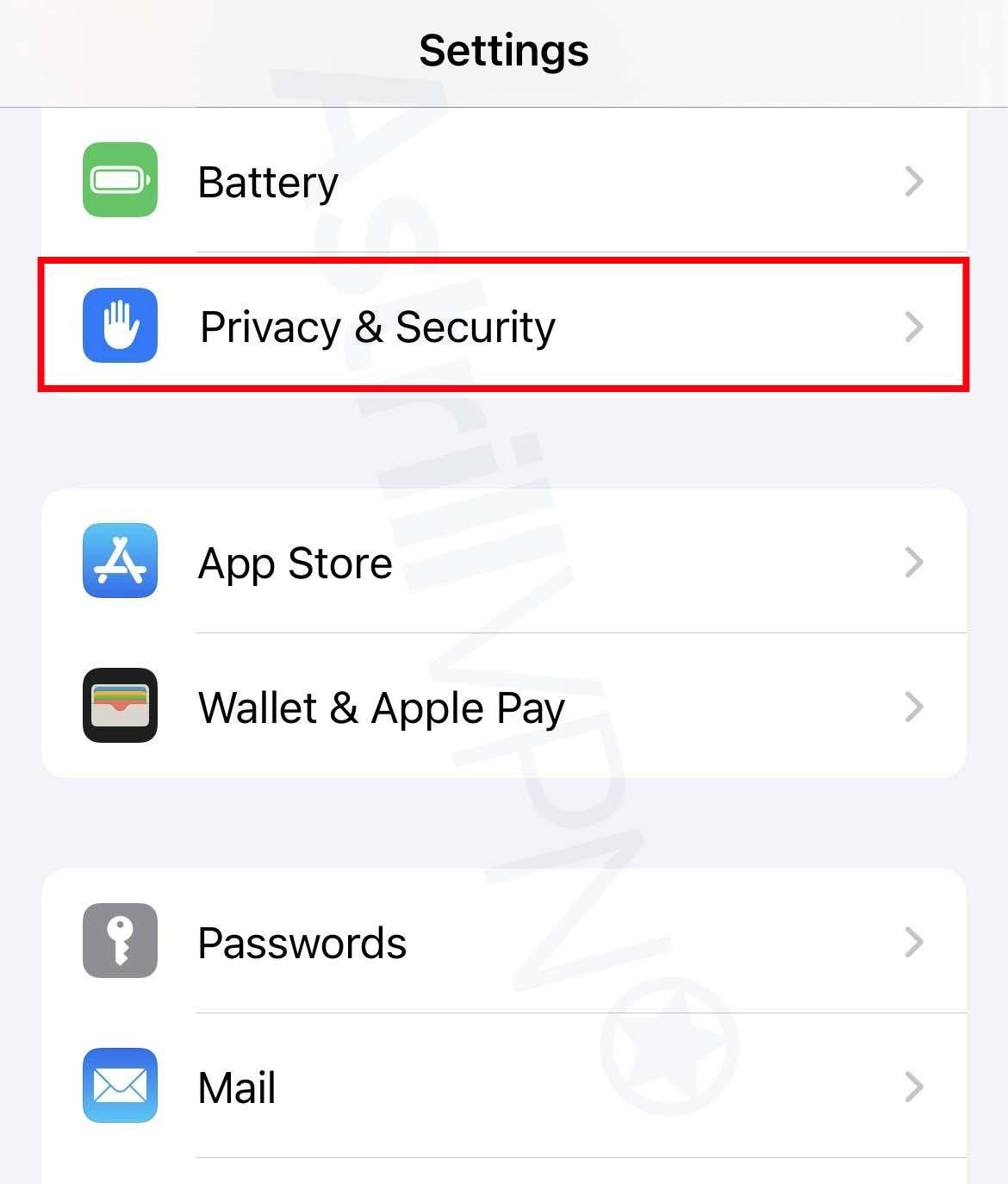
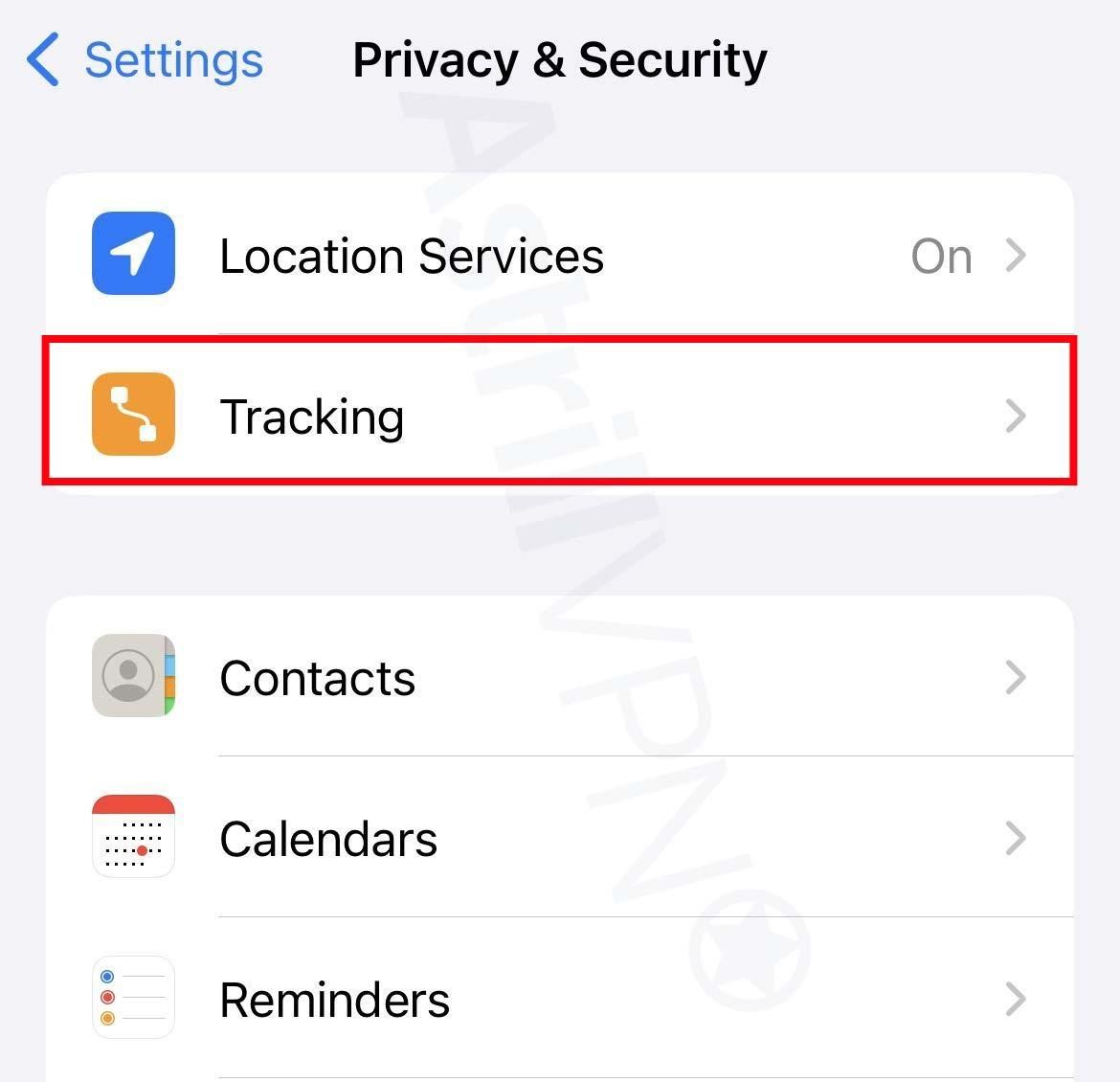
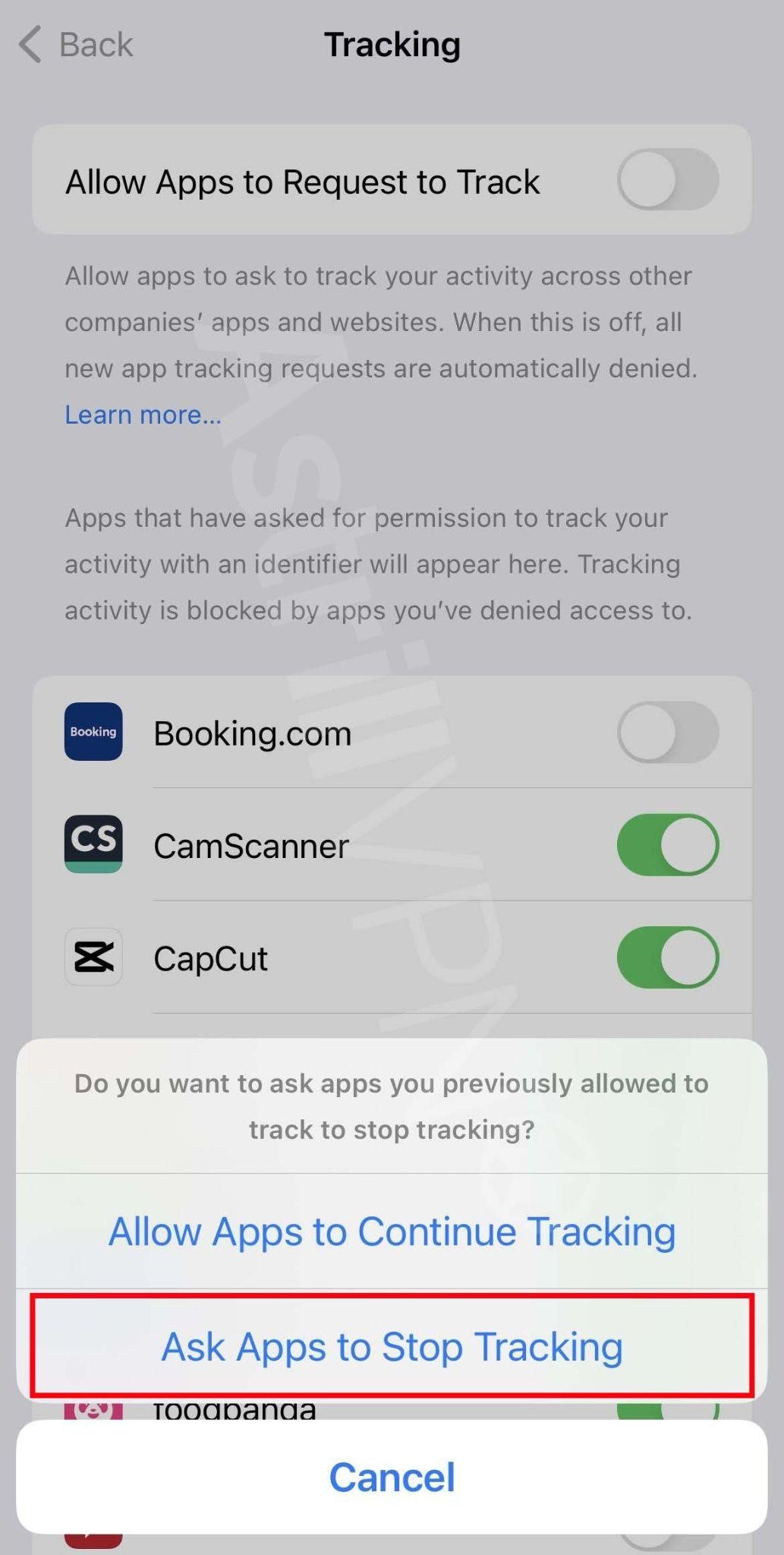
- The list will show you all the apps that requested permission to track you. You can turn the permissions on and off for any of the apps on the list.
- To stop all the apps from asking permission to track your activities and whereabouts, turn off Allow Apps To Request To Track, which you’ll find at the top of the screen.
4) Freeze All Your Credit
Suppose malicious actors have infiltrated your iPhone and have gained access to your Personally Identifiable Information (PII). In that case, the hackers can use your details and commit different types of financial fraud, including applying for loans under your name, opening other credit cards and online accounts using your name, or requesting a replacement credit card and changing the address so that you’re not able to receive the card. You can avoid this by placing a credit freeze on the three major credit bureaus, Equifax, TransUnion, and Experian, as this will prevent hackers from opening any new fraudulent accounts on your credit file. To freeze your credit, you must contact all the bureaus separately.
5) Cancel Linked Credit Cards
If any credit cards are linked to your compromised Apple ID, you must cancel them immediately. Malicious actors can use your Apple Pay to make fraudulent payments using your accounts. If you discover your iPhone has been hacked, contact your bank immediately. You will need to explain that your phone has been compromised and then request them to cancel all your accounts and reissue you a new one. If there are any disputed transactions, then contact the bank and request that they reverse the changes.
5) Remove Sketchy Configuration Profiles
If you are suspicious that a hacker has gained unauthorized access to your device, you can check a list of configuration profiles and remove those that look suspicious. Here’s how to do it:
- Connect the iPhone to a Mac with an Apple Configurator using a USB cable that came with the device.
- If you’ve plugged the iPhone into a Mac for the first time, you must confirm that you trust this computer after a popup appears.
- If your iPhone is locked, then unlock it.
- Drag and drop a configuration profile on selected devices or Blueprints.
- Select all the profiles you want to remove and then choose Actions > Remove > Profiles.
- Confirm that you want to remove the configuration profile by clicking on Remove.
6) Perform a Factory Reset
If all else fails, you may have to Factory Reset your iPhone. This will completely wipe out your iPhone and restore all the original settings on your device. This is the best way to remove the hacker from your iPhone if nothing else works. Here’s how you can do it:
- Before doing a factory reset, you must ensure that all of your data is backed up because it will be permanently deleted and removed from your device after the factory reset.
- Go to Settings > General and then click Transfer or Reset iPhone.
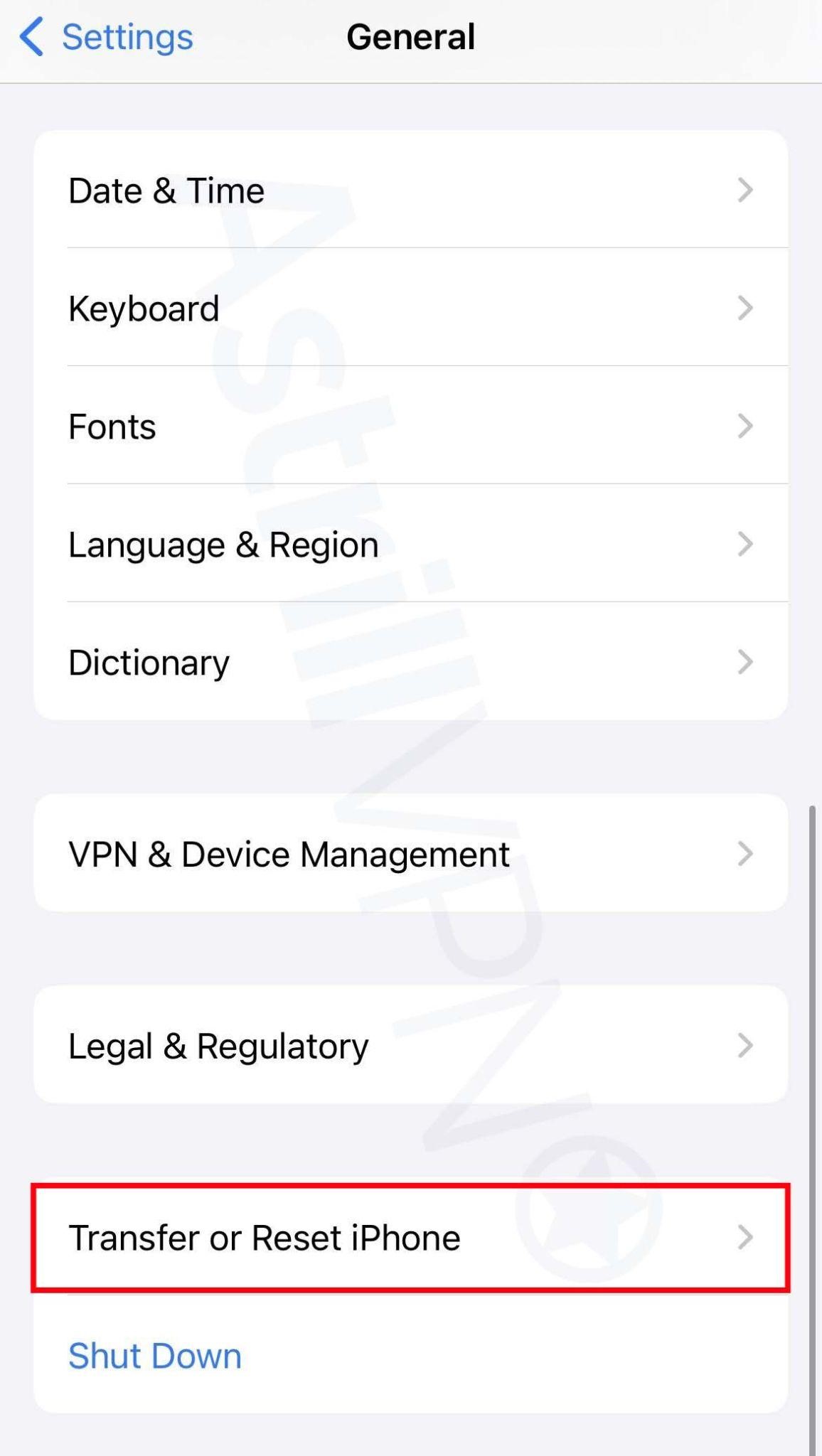
- Then click Erase All Content and Settings.
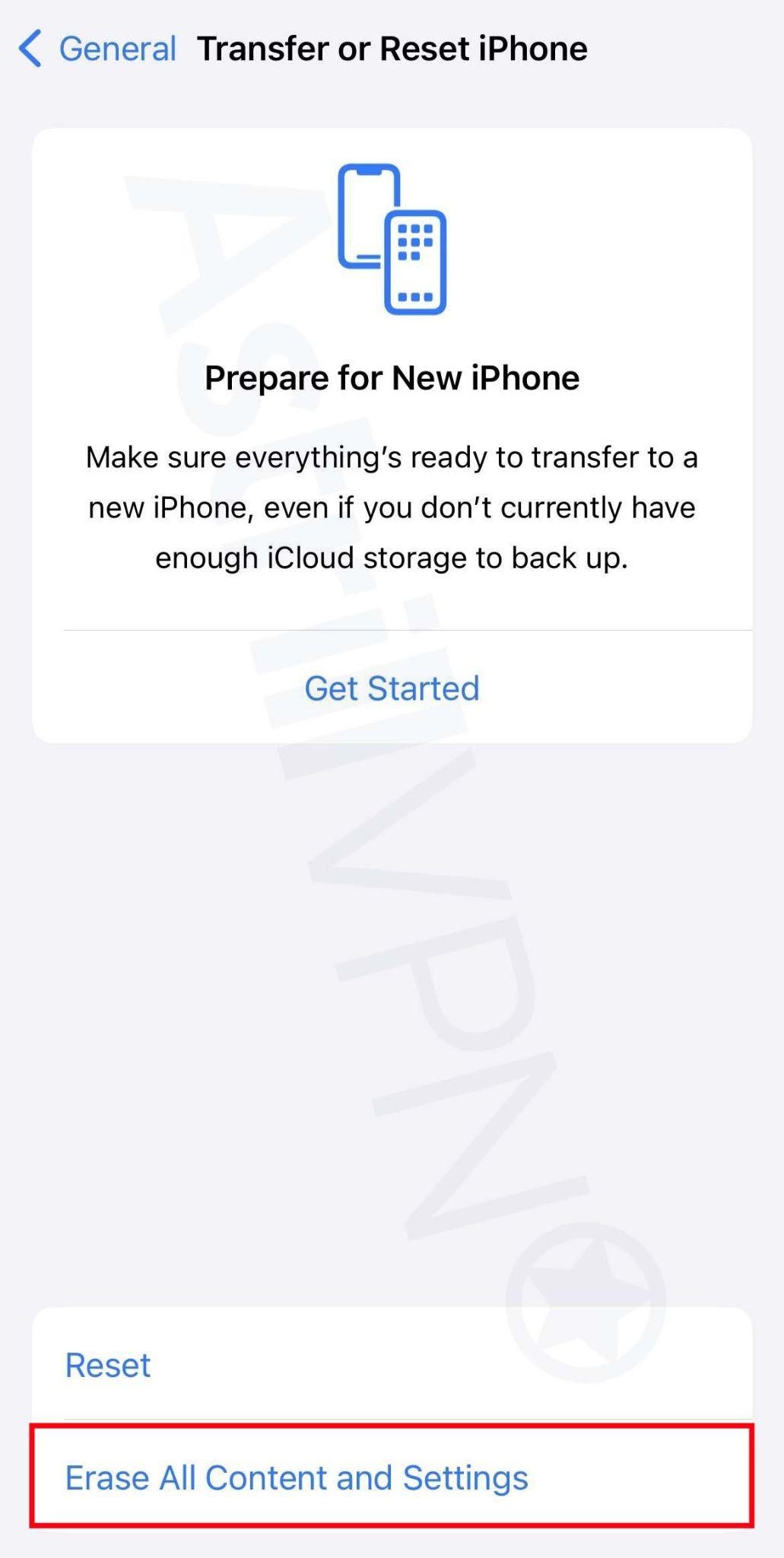
- Your iPhone will then be factory reset.
7) Report The Hacking To Apple Directly
If hackers gain unauthorized access to your Apple ID and iCloud, you can report this fraud to Apple directly. There are various ways that you can notify Apple about this fraud. Firstly, send all of the suspicious emails that you receive to reportphishing@apple.com. You can also call Apple Support at 800-275-2273 on a secure device or visit the Apple store in person and speak with a customer service representative to help resolve this issue and protect your account. Remember that Apple will never call you first or notify you of suspicious activities on your iPhone. First, any contact related to such matters from Apple is a scam, and you must be cautious.
Wrapping Up
In the digital age, being equipped with an iPhone doesn’t mean you’re automatically exempted from hackers or malicious threats. A hacker can still infiltrate your iPhone if you aren’t too careful. That’s why we’ve crafted this ultimate guide that not only helps you pinpoint the exact signs you need to be looking out for to determine whether your iPhone has been hacked but also what steps you need to take to remove them from your device and also prevent any such incidents from happening in the future. So you can rest easy since this guide ensures you’ll never have to worry about hackers gaining unauthorized access to your iPhone again.
Frequently Asked Questions (FAQs)
iPhones can also be vulnerable to hacking even though they are more secure than Android devices. Hackers can exploit security vulnerabilities in the iOS operating system and third-party apps to gain unauthorized access to your iPhone, steal sensitive data, and install malware.
Hackers can access your computer camera, microphone, and screen and use malware like spyware to gain remote access to your camera, screen, and microphone and control it.
When you get hacked, the first thing to do is change the passwords of all your online accounts immediately. Change the passwords even for those accounts that haven’t been compromised so that you’re protected on all fronts.
If you have broad app permissions, it can be risky if a hacker gains unauthorized access to your iPhone. Since they control the malicious app, they can steal as much information as you enable them. For instance, they could record your videos or audio, read your private messages, and watch all your photos.
There are a couple of steps that you can take to prevent this. Firstly, enable multi-factor authentication, as this helps add an extra layer of security to your device. You should also install an antivirus on your device to protect it from malware and other emerging threats. Lastly, you can factory reset your iPhone if the damage is too severe.










No comments were posted yet