




How to Bind qBittorrent to VPN for Secure and Anonymous Downloads

qBittorrent is a popular torrenting client used by millions of people worldwide. It supports many BitTorrent extensions, including magnet links and remote control. It can also download files from various torrent search sites. However, you may risk your online privacy and security when downloading torrents. To prevent this, you must invest in a reliable VPN (Virtual Private Network) to help resolve this issue. VPNs encrypt your internet traffic and mask your IP address, allowing you to keep your sensitive data safe and secure.
When you bind qBittorrent to VPN, it acts as a qBittorrent-only Kill Switch and can be configured to block any transfers when the VPN is disconnected. This detailed guide will explain how to bind qBittorrent to a VPN and achieve anonymous torrenting using a VPN and other methods. So, if you’re ready, let’s begin.
Table of Contents
Interface Binding vs VPN Kill Switch: What Is the Difference?
A VPN kill switch and interface binding are both designed to stop your real IP address from leaking during torrenting. They work in fundamentally different ways, and understanding the difference is worth a moment before you start configuring anything.
A kill switch works by monitoring your VPN connection in the background. When it detects a drop, it blocks all internet traffic until the VPN reconnects. The problem is that detection takes time. There is a gap of between one and five seconds between the VPN dropping and the kill switch cutting your traffic, and during that window your real IP address is visible to every peer in the torrent swarm.
Interface binding works differently. Instead of monitoring and reacting, it ties qBittorrent to the VPN network adapter at the socket level. qBittorrent can only establish connections through that specific adapter. If the adapter is absent because your VPN is disconnected or has crashed, qBittorrent simply cannot create a connection at all. There is no detection gap, no reaction time, and no window where your IP can slip through.
This makes binding more reliable than a kill switch for torrenting specifically. The kill switch is broad and convenient; binding is precise and deterministic. Using both together gives you the strongest protection: binding locks qBittorrent to the VPN adapter, and the kill switch covers everything else on your system.
| Interface binding | VPN kill switch | |
|---|---|---|
| How it works | Binds qBittorrent to the VPN network adapter at the socket level. No VPN adapter, no connection. | A background process monitors VPN status and blocks all internet traffic if it detects a drop. |
| Protection gap | None. If the adapter is absent, qBittorrent cannot establish a socket in the first place. | Small gap of 1 to 5 seconds between VPN drop detection and traffic block. Real IP can leak during this window. |
| Scope | Application-level. Only qBittorrent is affected. Other apps continue normally. | System-wide or application-level depending on VPN client settings. |
| Reliability | Deterministic. Works even if the VPN client crashes, as the adapter itself disappears. | Depends on the VPN client remaining running. A crashed client may not trigger the kill switch. |
| Setup required | Manual. Must be configured inside qBittorrent’s Advanced settings. | Usually one toggle inside the VPN client settings. |
| Best used for | Maximum protection for torrenting specifically. | General protection across all apps when you want system-wide coverage. |
How Can I Bind qBittorrent to AstrillVPN?
qBittorrent is free and open-source, allowing users to download diverse content. It offers simultaneous searches in many torrenting sites and BitTorrent extensions and a far better user experience than other torrent clients. It also has built-in RSS feed support, which allows users to download content by adding a feed to the list.
To begin using qBittorrent, download it from the official website. Once you’ve downloaded it, you can install it on your device. When you begin using qBittorrent, you must agree to the service terms. To start configuring qBittorrent, you must activate the web panel in the program settings and complete the IP address fields. You can also remotely control qBittorrent through the web panel. The following section will discuss how you can bind AstrillVPN to qBittorrent.
How To Use AstrillVPN for qBittorrent?
Here’s how you can use AstrillVPN and bind it to qBittorrent. Just follow these simple steps, and you’re good to go:
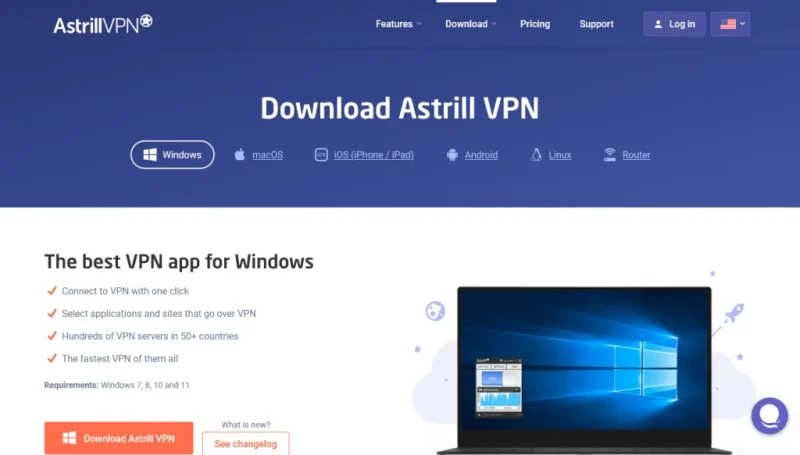
- Download and install AstrillVPN to your device. You can do this directly from the website.
- Choose the link for the operating system that you use.
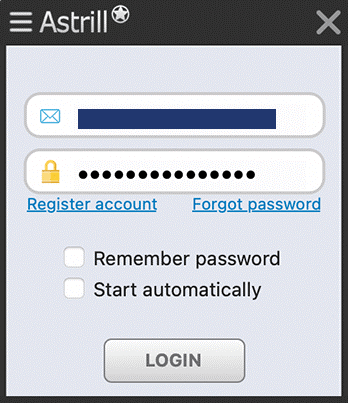
- Once you’ve installed it, sign up or register for your account and sign in using your login credentials.
- Connect to the server location and choose a protocol that meets your needs and requirements.
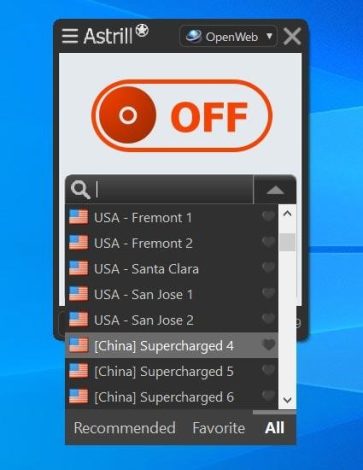
- Opt for a server location that supports torrenting and has fast downloading speeds. Luckily, AstrillVPN has many of those servers.
- Then, you will need to configure qBitTorrent for VPN. Open qBittorrent and go to its settings menu. Search for options that are related to network or connection settings.
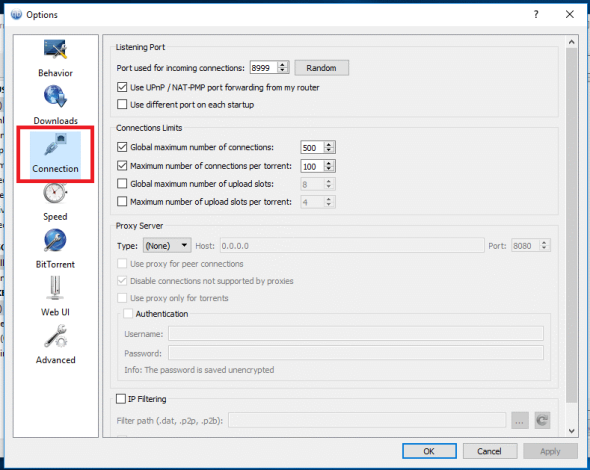
- In the network settings of qBittorrent, look for the option to specify a network interface or IP address. Choose the network interface that is associated with the VPN connection.
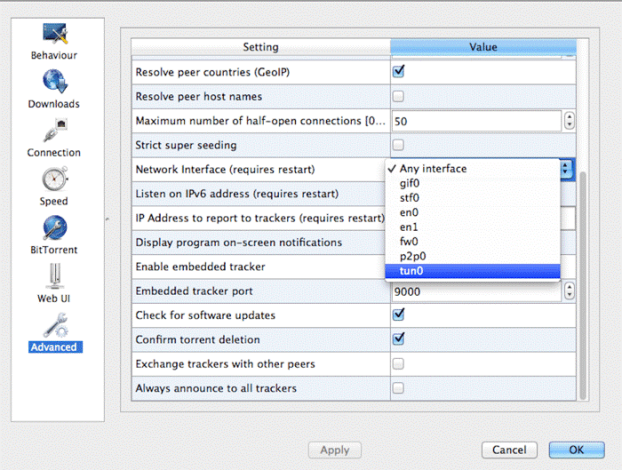
- To ensure that qBitTorrent is correctly bound to AstrillVPN, perform a torrent IP check or use websites like ipleak.net to confirm that your torrenting activity is routed through AstrillVPN’s server IP address.
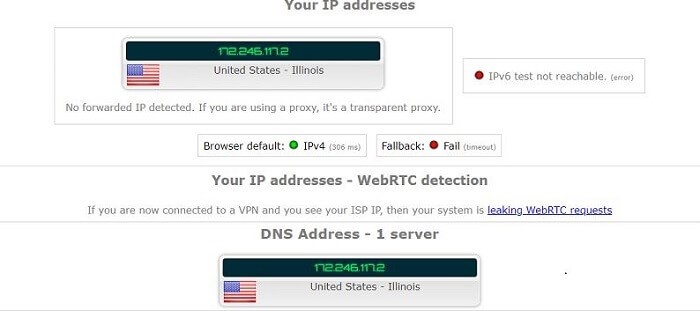
- When you bind qBittorrent to AstrillVPN, you can confidently continue your torrenting activities, knowing that your online privacy and security remain intact. Always keep VPN software updated and connect to a server location in torrent-friendly jurisdictions to get the best torrenting experience.
Factors To Consider When Setting Up A VPN for qBittorrent
When you’re setting up AstrillVPN for qBittorrent, there are some factors that you have to take into consideration before doing so. There are certain features and specifications that you need to implement when using a BitTorrent VPN. Let’s get into it.
- The first step would be to choose the fastest VPN protocol. You can compromise on a small amount of encryption for faster speeds and enhanced performance. That’s why it is recommended to opt for Wireguard, a relatively newer and lighter protocol that outperforms other protocols with qBittorrent.
- You must also enable the Kill Switch, which AstrillVPN offers. Using a Kill Switch for qBittorrent is recommended since it will prevent your IP address from getting leaked and becoming visible to other torrent peers.
- It’s also essential that the VPN provider offers a generous number of servers; luckily, AstrillVPN offers many. It would be better to opt for a server location in a torrent-friendly jurisdiction, like Spain, Switzerland, or the Netherlands. So, if you don’t want your torrenting activities inspected and interceded, you must choose server locations in torrent-friendly jurisdictions.
How To Bind qBittorrent To Your VPN Provider?
You cannot skip this step if you want to prioritize secure torrenting. qBittorrent has specific features that allow you to bind its internet connection to your VPN adapter. When you enable VPN binding in qBittorrent, the app cannot access the internet and connect to peers unless you’ve established a VPN connection. It’s quite simple to set up, so here’s what you have to do:
- Open qBittorrent’s advanced settings, as the VPN-binding feature is located there. You can access it by going to Tools > Options > Advanced.
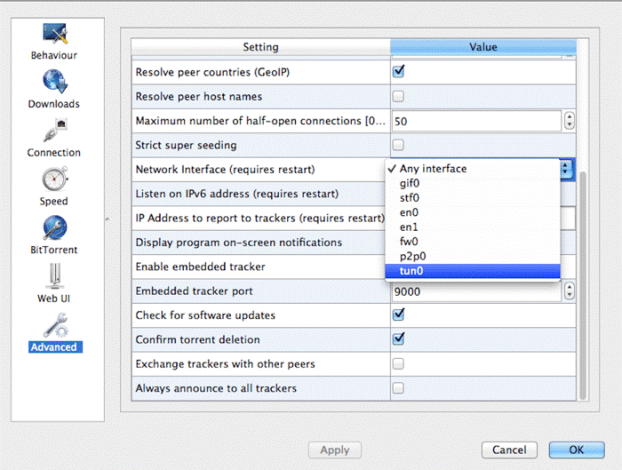
- qBittorrent allows you to bind its connectivity to a network interface or IP address. Unless your VPN uses a static IP address, it would be better to bind to an interface so that it continues to work every time a new IP address is assigned.
- You will then have to identify the correct network interface to bind. You will need to find your VPN provider’s network interface. You must ensure your VPN connection is turned on, then open the Network Connections panel on your system. Right-click each available interface to see the status and the data transferred to help simplify which one is active. Once you’ve found the correct adapter, choose the interface in qBittorrent.
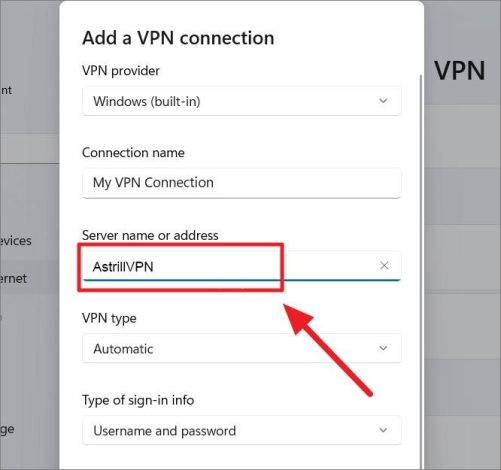
- In the final step, you must ensure everything works correctly. Here’s what you have to do:
- Connect to your VPN provider.
- Open a 100% legal test torrent.
- Check if it’s downloading on qBittorrent.
- Disconnect from the VPN.
- Make sure that the torrent has stopped on qBittorrent, and that it doesn’t restart.
- Reconnect to the VPN.
- The torrent should now be able to start again.
How to Bind qBittorrent to a VPN on macOS
The binding process on macOS follows the same logic as Windows but uses different tools to find your VPN interface name. macOS does not have a Network Connections panel, so you need to use either Terminal or System Settings to identify the correct adapter before configuring qBittorrent.
Step 1: Find your VPN interface name
Connect to AstrillVPN first, then open Terminal (you can find it in Applications > Utilities or search for it with Spotlight).
Run the following command:
ifconfig | grep -E ‘^(utun|tun|ppp)’
This returns a list of tunnel interfaces currently active on your Mac. When AstrillVPN is connected, you will see one or more entries beginning with utun, for example utun0, utun1, or utun2. The one belonging to AstrillVPN is usually the highest-numbered active utun interface, but the easiest way to confirm it is to disconnect AstrillVPN and run the command again. The interface that disappears from the list is the one you need.
Alternatively, open System Settings, go to Network, and look for the AstrillVPN entry. The interface name is displayed there as well.
Step 2: Open qBittorrent’s Advanced settings
- Open qBittorrent on your Mac.
- Go to qBittorrent in the menu bar, then select Preferences.
- Click the Advanced tab.
- Find the Network Interface dropdown at the top of the Advanced settings panel.
Step 3: Select your VPN interface
In the Network Interface dropdown, select the utun interface you identified in Step 1. If your interface name is not in the dropdown, make sure AstrillVPN is connected and restart qBittorrent so it re-reads the available adapters.
If you are using WireGuard and the interface name changes on each reconnect, leave the Network Interface dropdown set to Any Interface and instead enter your VPN-assigned IP address in the Optional IP Address to Bind To field directly below it. You can find your current VPN IP by visiting ipleak.net while connected, or checking the AstrillVPN client.
Step 4: Save and restart qBittorrent
- Click OK to save your Preferences.
- Quit and relaunch qBittorrent.
- Confirm the binding is working by following the verification steps in the next section.
How to Bind qBittorrent to a VPN on Linux
Linux gives you the most control over network interfaces, but the interface names vary depending on your distribution and which VPN protocol you are using. The steps below work on Ubuntu, Debian, Fedora, and most other mainstream distributions.
Step 1: Find your VPN interface name
Connect to AstrillVPN, then open a terminal and run:
ip addr show
This lists all active network interfaces. Look for the following depending on your protocol:
- tun0 or tun1 — used by OpenVPN and StealthVPN connections.
- wg0 — used by WireGuard connections.
- ppp0 — used by some legacy protocol configurations.
If you are unsure which interface belongs to AstrillVPN, disconnect from the VPN, run ip addr show again, and compare the output. The interface that disappears is the VPN adapter.
You can also run the following to show only tunnel-type interfaces:
ip link show type tun; ip link show type wireguard
Step 2: Open qBittorrent’s Advanced settings
- Open qBittorrent.
- Go to Tools, then Options, then the Advanced tab.
- Locate the Network Interface dropdown at the top of the Advanced panel.
Step 3: Select your VPN interface
Select the interface name you identified in Step 1, for example tun0 or wg0, from the Network Interface dropdown.
If the interface does not appear in the dropdown, confirm your VPN is connected and restart qBittorrent. Linux sometimes requires a full application restart for new interfaces to appear in the list.
Leave the Optional IP Address to Bind To field empty unless you are using a static IP configuration or have a specific reason to bind to the IP rather than the interface.
Step 4: Disable IPv6 to prevent bypass leaks
On Linux, IPv6 traffic can bypass your VPN tunnel if the VPN adapter is IPv4-only and your system has an active IPv6 route on the physical interface. This is a common source of IP leaks that is easy to miss because ipleak.net and similar tools may show your VPN IPv4 address as clean while your real IPv6 address is being sent directly to peers.
To disable IPv6 on your physical network interface (replace eth0 with your actual interface name, which you can find by running ip addr show):
sudo sysctl -w net.ipv6.conf.eth0.disable_ipv6=1
sudo sysctl -w net.ipv6.conf.default.disable_ipv6=1
To make this permanent across reboots, add both lines to /etc/sysctl.conf.
Step 5: Save and restart qBittorrent
- Click OK to save your settings.
- Quit and relaunch qBittorrent.
- Proceed to the verification section below to confirm everything is working correctly.
Why Use A VPN for qBittorrent?
There are plenty of reasons why you must use a VPN for qBittorrent, particularly regarding your privacy and security. Here are some reasons why using a VPN for torrenting may be beneficial in this case:
- Since a VPN encrypts your internet traffic, it is challenging for malicious actors to track your online activities. When you connect to a VPN server before downloading and sharing torrents, you can keep your online presence anonymous and prevent prying eyes from snooping on your torrenting activities.
- Many Internet Service Providers (ISPs) throttle your internet connection when you engage in bandwidth-heavy activities like torrenting, gaming, and streaming. If they detect torrenting activities, they may slow down your connection. VPNs conceal your online activities, preventing your ISP from detecting torrenting activities.
- VPNs also offer protection against malicious peers. They can expose your connection to malicious actors on the network, which can be risky for your connection. Since VPNs encrypt your internet traffic, they protect you from potential attacks and surveillance.
- VPNs add an extra layer of protection by protecting your devices from malware and phishing attacks commonly found on torrent websites. With VPN encryption, your sensitive and confidential data gets protected from malicious actors seeking to exploit your vulnerabilities.
- Some torrenting sites can be geo-restricted in specific regions. VPNs allow you to connect to a server in a different location, bypassing geolocation restrictions and gaining uninterrupted access to content that may not be available in your region.
- Torrenting is illegal in various countries, so using a VPN protects you from legal consequences. It encrypts your internet traffic, making it challenging for third parties to trace your online activities back to you.
What Is The Benefit Of Using AstrillVPN for qBittorrent?
There are a couple of reasons why we can vouch for AstrillVPN as the best VPN for qBittorrent. It has a range of unique features that are precisely what you need for a qBittorrent VPN. Let’s get into why you need to invest in AstrillVPN for qBittorrent:
1) Privacy & Security Features
AstrillVPN offers a wide range of privacy and security features, which are crucial when accessing torrenting sites. It has a Kill Switch feature, Smart Mode, and DNS leak protection. It also offers the industry standard AES-256 encryption alongside robust encryption protocols like StealthVPN, OpenVPN, and Wireguard, the latter of which is one of the most secure and fastest protocols. It would help to have these security tools when navigating the online world and torrenting to ensure your sensitive data is not compromised.
2) No Logs Policy
When prioritizing your online privacy and security, it’s also essential that you opt for a VPN provider that adheres to a strict No Logs Policy. Luckily, AstrillVPN adheres to a strict No Logs policy, and you can also verify this by checking their privacy policy, which lays all of this out in detail. A No Logs policy means that the VPN provider will not keep a track record of your personal and confidential data when using the VPN. Your browsing history and data will get deleted once you log out of the VPN provider.
3) Fast Performance
AstrillVPN offers servers specifically optimized for streaming, torrenting, and gaming. It prides itself on letting its products speak for themselves rather than focusing on extensive marketing strategies, and its fast servers are proof enough. They offer impressive download speeds from 200 to 275 Mbps and provide servers optimized for streaming. Their incredible download speed ensures that you’ll have a satisfactory and seamless experience when you’re on torrenting sites and downloading content. It has high-speed servers that are optimized for P2P file sharing.
4) Excellent Customer Support
AstrillVPN has a team of competent customer support specialists available 24/7 to answer all your pressing queries. You can reach out to them through various modes of communication, including phone, email, and live chat, and they will be sure to help you promptly. In addition to their excellent customer support services, they also offer additional tools and resources to help customers navigate specific features of the app. They have a dedicated AstrillWiki with helpful guides and tutorials that users will find useful when using the app. However, if you want in-depth guidance specific to your situation, it would be best to contact a customer support team member.
5) Compatibility With Multiple Devices
Another significant benefit of using AstrillVPN is that it is compatible with multiple devices and operating systems, which include iOS, Android, Linux, Windows, and macOS. If you’ve downloaded a movie from Torrent and want to watch it while traveling or on vacation, then AstrillVPN allows you to watch movies on multiple devices, which will be pretty convenient. Another bonus of using AstrillVPN is that it allows you to have five simultaneous connections and keep your devices secure.
6) Extensive Range of Servers
AstrillVPN offers a wide range of servers in all the significant regions, allowing you to bypass geolocation restrictions, access different torrenting sites, and bypass ISP throttling when you’re engaged in torrenting activities. AstrillVPN offers an extensive range of servers, with 300+ servers across 57+ locations. AstrillVPN offers fast servers ideal for torrenting, streaming, and downloading. You can connect to any server location, ensuring all your online activities remain undetected.
What Other Ways Can I Anonymise Torrenting Traffic?
Other than using a VPN, which is the ideal choice to maintain your privacy when torrenting, there are alternative methods that you can use to support and boost privacy. Let’s discuss some of these alternative methods in depth.
- One of the ways that you can anonymously torrent traffic is by using a proxy server. Proxy servers act as intermediaries between your device and the internet, enabling you to route your torrent traffic through a different IP address. This helps you hide your IP address and offers a layer of anonymity and security when you’re sharing or downloading files through torrenting.
- Using torrent clients with built-in encryption features can help keep your data transmissions secure and make it more difficult for unauthorized personnel to intercept your torrent downloads. Also, you must update your torrent client to the latest version to help patch security vulnerabilities and ensure a more secure torrenting experience.
- Always be careful about the torrents you download and avoid suspicious and malicious content, as this can help enhance your privacy and security. Ensure you’re accessing trustworthy and reputable torrent websites and verify their authenticity before downloading them to prevent your devices from getting infected with malware and other online threats.
Wrapping Up
qBittorrent is safe with a good VPN for torrenting like AstrillVPN, so you can rest assured that you’re safe. You must prioritize torrent privacy to safeguard your online privacy and anonymity. When you leverage the power of VPNs and use secure clients, you can easily enhance your privacy and security and ensure a safe and secure torrenting experience.
Frequently Asked Questions (FAQs)
VPNs can occasionally be overloaded with bandwidth and throttle to low speeds. VPNs can be overloaded with connection crashes and go to low speeds. Upload-side overloads can also cause download-side speed die-offs, and the qBitTorrent settings can be aggressive for one or multiple reasons.
Some VPNs can work with qBittorrent and other peer-to-peer platforms, so there’s no need to use a proxy when using qBittorrent with a VPN. A VPN prevents malicious actors and other third parties from intercepting your IP address.
You can easily set up port forwarding on qBittorrent using a VPN.
SOCKS5 proxies are faster than VPNs because they don’t encrypt your internet traffic. VPNs are slightly slower than your normal internet speed since they encrypt your traffic. SOCKS5 proxies are manually configured, which isn’t challenging but requires technical expertise and knowledge.

Secure your privacy instantly. Try AstrillVPN with zero risk.
About The Author










No comments were posted yet