




In today’s digital landscape, privacy and security are paramount concerns. You may have heard about Virtual Private Networks (VPNs) as a solution, but how do you leverage their power on your Chromecast? This guide will walk you through selecting and setting up the best VPN for Chromecast, ensuring your streaming experience remains secure and uninterrupted. Unlock a world of content while safeguarding your online activities from prying eyes. Dive in and discover the seamless integration of VPNs with your beloved streaming device.
Table of Contents
Why do You Need a VPN for Chromecast?
Chromecast is a great little device, but it has no built-in privacy controls. Every stream you watch, every app you cast from, your internet provider can see it all. And if you are using it on a public network, anyone else on that same connection can use it. A VPN fixes both of these problems at once.
Online Privacy and Security
Your ISP sits between you and every server your Chromecast connects to. Without a VPN, that traffic is completely readable to them. Once you route it through an encrypted VPN tunnel, they see nothing useful, just a pile of encrypted data going to a VPN server. That applies whether you are streaming at home or casting from a hotel room.
Access Geo-Restricted Content
Streaming libraries are different depending on where you are in the world. Netflix US has shows that Netflix UK does not, and BBC iPlayer is completely off-limits if you are outside the UK. A VPN lets you connect through a server in whatever country you need, so the streaming service thinks you are a local user and serves you that region’s content on your Chromecast.
Stop ISP Throttling
ISPs are well known for detecting streaming traffic and deliberately slowing it down during peak hours. It is legal, and it is annoying. Because a VPN encrypts everything, your ISP cannot tell whether you are watching a 4K stream or sending a plain-text email. No detection, no throttling, no buffering at 9 pm on a Friday night.
Public Wi-Fi Protection
Casting content over a public network without a VPN is a risk that is easy to overlook. Anyone on the same network can intercept unencrypted traffic. A VPN wraps your connection in encryption before it leaves your device, so even if someone is watching network traffic, they cannot read it.
How to set up a VPN on your Chromecast?
Method #1: Set Up Chromecast with a VPN via a Physical Router
If you have the Chromecast with Google TV, this is the only setup guide you need. Google TV runs Android under the hood, which means it has access to the Google Play Store, and AstrillVPN has an app there. No routers, no hotspots, no command lines.
- Turn on your Chromecast with Google TV and open the Google Play Store from the home screen.
- Search for AstrillVPN and select the app from the results.
- Tap Install and wait for it to finish downloading.
- Open the app and sign in with your AstrillVPN account credentials. You can scan a QR code from your phone if you prefer.
- When the app asks to set up a VPN connection, tap OK to allow it.
- Pick a server location from the list. If you want to unblock US Netflix, connect to a US server. For BBC iPlayer, connect to a UK server.
- Tap Connect, then open the streaming app you want to use. The content from that region will now be available.
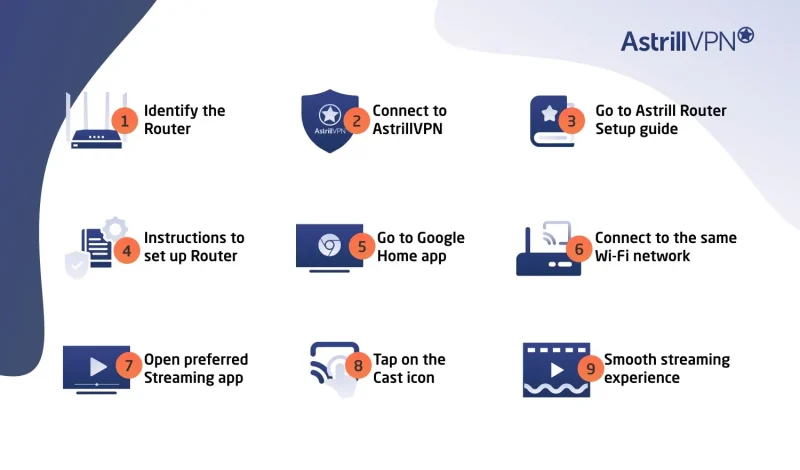
Method #2: Set Up Chromecast with a VPN via a Virtual Router
You can create a virtual router on your Mac or PC and share your VPN connection.
Step 1: Set Up Your VPN
- Sign up for AstrillVPN.
- Download and install the AstrillVPN software on your Mac or PC.
- Launch the VPN and connect to your desired server location.
Step 2: Create a Virtual Router on Windows
For Windows versions earlier than Windows 10:
- Press Windows + S to open search and type cmd.
- Right-click Command Prompt and select Run as administrator.
Type the following (but don’t press Enter yet):
netsh wlan set hostednetwork mode=allow ssid=NETWORKNAME key=PASSWORD
-
- Replace NETWORKNAME with your preferred Wi-Fi name.
- Replace PASSWORD with a secure password.
- Replace NETWORKNAME with your preferred Wi-Fi name.
- Press Enter to create the hosted network.
- Press Windows + R, type ncpa.cpl, and hit OK.
- Locate the new connection with your network name.
- Find your active VPN connection.
- Right-click the VPN connection, choose Properties, and go to the Sharing tab.
- Check: Allow other network users to connect through this computer’s internet connection.
- In the drop-down menu, choose the name of your hosted network from step 6.
- Click OK. Your virtual router is now active.
For Windows 10 and newer:
- Open Settings > Network & Internet.
- Toggle Mobile Hotspot to ON.
- Go to Advanced network settings > More network adapter options.
- In the new window, right-click your VPN connection and select Properties.
- Go to the Sharing tab.
- Check Allow other network users to connect through this computer’s internet connection.
- Choose your active hotspot from the drop-down menu.
- Click OK to finish.
Step 3: Create a Virtual Router on Mac
- Open System Preferences > Sharing.
- Select Internet Sharing in the left menu.
- On the right, choose to share your connection from your VPN (L2TP).
- In the To computers using section, check the box for Wi-Fi.
- Click Wi-Fi Options and:
- Set your network name.
- Leave the default channel
- Select WPA2 Personal for security.
- Enter and verify your password.
- Set your network name.
- Click OK.
- Back in the Sharing menu, check the box next to Internet Sharing.
- Confirm by clicking Start. When active, you’ll see a green indicator: Internet Sharing: On.
Step 4: Connect Chromecast to Your Virtual Router
- Launch the Chromecast app and begin the setup process.
- When prompted to Connect Chromecast to Wi-Fi, select the virtual router you created.
- Enter your virtual router’s password.
- Click Set Network.
Method 3: Mirror Your Screen from Chrome Browser (No Router Needed)
This is the quickest workaround for older Chromecast models, and it does not involve touching your router at all. You just cast a tab from Google Chrome on your laptop while AstrillVPN is running. The whole stream goes through your VPN before it gets cast to the TV.
One thing to know before you start: this method only works on Windows, macOS, and Linux. Android and iOS cannot cast tabs from Chrome, so if you are working from a phone or tablet, the hotspot method below is a better fit.
- Connect to AstrillVPN on your laptop and choose your server location.
- Open Google Chrome and open your streaming service in a new tab.
- Click the three-dot menu in the top right corner of Chrome.
- Select Cast, Save and Share, then Cast.
- Choose your Chromecast device from the list that appears.
- Make sure the source is set to Cast tab, then start playing your content. It will appear on your TV within a few seconds.
Note: For a universal guide to VPN setup on all smart TV brands, see how to set up a VPN on your smart TV
Why is AstrillVPN best for Chromecast?
Robust Security Measures
AstrillVPN offers robust security features that make it an ideal choice for securing your Chromecast connection. With military-grade encryption and a strict no-logs policy, your online activities remain private and anonymous. This ensures that your streaming experience is not compromised by prying eyes or cyber threats.
Global Server Network
With servers strategically located worldwide, AstrillVPN allows you to bypass geo-restrictions and access a world of content on your Chromecast. Whether you want to stream your favorite shows or access region-locked services, AstrillVPN’s extensive server coverage ensures a seamless streaming experience.
High-Speed Performance
Buffering and lagging can ruin your streaming experience. AstrillVPN’s optimized servers deliver lightning-fast speeds, ensuring that you can stream high-quality content without interruptions. This makes it an excellent choice for Chromecast users who demand a smooth and uninterrupted viewing experience.
User-Friendly Interface
AstrillVPN’s intuitive and user-friendly interface makes it easy to set up and use, even for those with limited technical knowledge. With a few clicks, you can connect to a secure server and stream on your Chromecast without hassle.
Compatibility and Versatility
AstrillVPN is compatible with a wide range of devices, including Chromecast, smartphones, tablets, and computers. This versatility allows you to secure your online activities across multiple platforms, ensuring a consistent and secure streaming experience wherever you go.
Troubleshooting Chromecast not working with VPN
Why Does Chromecast Stop Finding My Device When I Turn on a VPN?
Chromecast broadcasts over your local network, recognized by your phone or laptop to initiate casting. When a VPN is enabled, your device gets a new IP, making it appear on a different network than your Chromecast, causing discovery failure. To fix this, connect both devices to the same VPN-protected network, using methods like a router setup, virtual router, hotspot, or direct Google TV installation. Turning on VPN only on your phone prevents casting to a Chromecast on your usual Wi-Fi.
Enable Local Network Access in AstrillVPN Settings
Even after you sort out the IP mismatch, some users still find that their phone cannot discover the Chromecast. The reason is usually that AstrillVPN is blocking local network access by default. When that setting is off, the VPN isolates your device from everything on the local network, including your Chromecast.
To fix it, open AstrillVPN on your device and look for the local network or LAN access setting. On Android, this is usually found under the app’s settings or advanced options. On iOS, look for a similar toggle. Enabling local network access tells AstrillVPN to let traffic through to devices on the same local network, which allows Chromecast discovery to work normally even while the VPN is active.
Benefits of using Chromecast with a VPN
Enhanced Privacy and Security
Every time you cast content to your Chromecast, that traffic moves across your network in plain text unless you are using a VPN. A VPN encrypts everything leaving your device, which means your ISP, your network administrator, and anyone else on the same connection cannot see what you are watching. For people who stream on shared networks or travel with a Chromecast, this is a meaningful protection, not a theoretical one.
Prevent Bandwidth Throttling
Streaming platforms are one of the most common targets for ISP throttling. Providers detect high-bandwidth video traffic and slow it down, particularly during busy evening hours. Because a VPN encrypts your traffic, your ISP cannot identify it as streaming data. To them it just looks like a generic encrypted connection, which means they have no basis for singling it out and slowing it down. The result is a more consistent connection speed when it matters most.
Online Anonymity
When you connect through AstrillVPN, your Chromecast and the device you are casting from both appear to be coming from the VPN server’s IP address rather than your own. Streaming services, advertisers, and data brokers cannot tie that traffic back to your real location or identity. If you prefer to stream without leaving a trail behind, a VPN is the practical way to do it.
Conclusion
Now, you can unlock the world of content through your Chromecast device using a VPN. Embrace this newfound freedom to access geo-restricted streaming services and enhance your online privacy. Remember, a reputable VPN provider like Astrill is crucial for optimal performance and security. Embark on this digital journey with confidence, knowing you have the tools to fully embrace the potential of your Chromecast. The world of entertainment awaits your exploration.
FAQs
Yes, you can use your Chromecast device abroad. However, some geo-restricted content may not be accessible due to licensing agreements. AstrillVPN can bypass these restrictions and allow you to stream content from your home country while traveling.
No, Chromecast with Google TV is not region-locked. You can set up and use the device in any country. However, due to regional restrictions, the available apps and content may vary by location.
Chromecast collects device information, usage statistics, and crash reports to improve performance and security. Google also collects data for personalized advertising purposes, which you can opt out of in your Google account settings.
While using a free VPN with Chromecast is possible, it is generally not recommended. Free VPNs often have data limits and slower speeds and may compromise your privacy and security. Paid VPN services offer better performance, security features, and customer support.

Secure your privacy instantly. Try AstrillVPN with zero risk.
About The Author











No comments were posted yet