




VPN Split Tunneling for Gaming: Protect Your Browser Without Increasing Game Ping

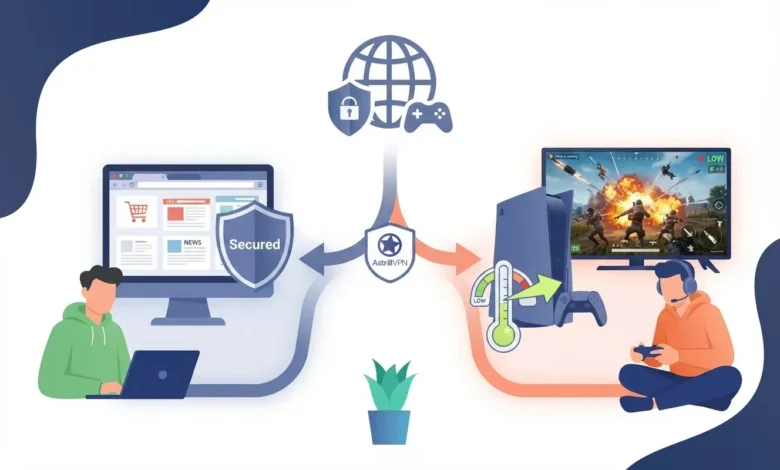
We all know the routine: turn on your VPN, jump into a match – and BAM! – that sweet 30ms ping turns into a grinding 90ms which results in you getting killed by a wall while your bullets magically miss the enemy.
So you switch off your VPN. No more lagging. But your browsing is now exposed to your local Internet connection, complete with prying eyes. All your logins will be exposed as well as that latest skin you’ve just purchased (often for some outrageous price) from that somewhat shady website.
There’s no need to have to compromise between gaming and being securely protected whilst browsing online. With the introduction of VPN split tunneling for gaming it’s now possible for you to keep your browsing safe and secure whilst allowing your games to connect directly for better low ping performance, just as you had when your VPN was switched off.
I’ll explain it to you within a few minutes as to why it works and how to set it up.
Table of Contents
Why Does a VPN Mess With Your Ping?
Ping is just how long it takes for data to go from your PC to the game server and back. Without a VPN, your data takes whatever route your ISP picks. Usually that is a pretty direct path.
With a VPN on for everything, your game data takes a detour. It goes to the VPN server first, then to the game server, then all the way back. A few things make that worse:
- Distance. If the VPN server is in another city or country, that is a lot of extra road for every single packet.
- Encryption. Every packet gets locked and unlocked. It is quick on modern hardware, but it still adds a little delay and some jitter.
- Busy servers. At peak hours, a crowded VPN server can hold packets up for a moment. In a fast shooter, you feel that as spikes and rubber banding.
- Worse routes. Sometimes the path from the VPN server to the game server is just not as good as the one you already had.
For browsing, you would never notice a few extra milliseconds. In a gunfight? That is the difference between the kill cam and the win. If you want more general tips beyond VPNs, we also have a full guide on how to lower ping for online gaming.
So What Is Split Tunneling, Really?
Think of it like two lanes on a road. One lane goes through the VPN tunnel, encrypted, showing the VPN server’s IP. The other lane goes straight out through your regular connection, same as always.
You get to decide what goes in which lane. Most VPNs let you split things up in two ways:
- By app. You pick which programs use the VPN. For gamers, this is the easy one. Browser in, game out. Done.
- By website or IP. You pick specific sites or IP ranges. Handy for some stuff, but a pain for games, since they talk to a bunch of different servers.
For what we want here, app-based splitting is the way to go. If you are curious about how it all works under the hood, check out our deeper explainer on what VPN split tunneling is.
The Setup We Are Going For: Browser In, Game Out
The idea is pretty simple. Stuff that deals with your personal info goes through the VPN. Stuff that just needs speed does not.
| What | Where it goes | Why |
| Your browser | Through the VPN | Logins, payments, searches, and everything you do on public or shared Wi-Fi stays encrypted. Your ISP can’t see what you browse either. |
| The game itself | Normal connection | Takes the shortest path to the game server, so your ping stays where it was. |
| Your launcher (Steam, Epic, Battle.net, Riot Client) | Normal connection | Fewer login hiccups, no weird region mix-ups, faster downloads. |
The game server sees your normal IP, just like before. Every website you open in your browser sees the VPN server instead. Privacy where it counts, zero penalty where it hurts.
Tunnel Only These Apps or Exclude These Apps?
This is the part that confuses people a bit, so let me clear it up. App-based split tunneling usually has two modes. Both keep your game off the VPN. The only difference is what happens to everything else on your PC.
| Mode | What uses the VPN | Pick this if… |
| Tunnel only these apps | Only the apps you add, like your browser | You mostly care about protecting your browsing and want everything else left alone |
| Exclude these apps | Everything except the apps you add, like your game and launcher | You want Discord, email, torrent clients and the rest covered too |
If you just want what the title says, protect the browser and let the game be, go with Tunnel only these apps. Less to set up and nothing random gets dragged into the tunnel.
If you would rather keep your whole PC on the VPN and only pull the game out, go with Exclude these apps. I will show you both.
How to Set It Up in Astrill VPN
Astrill does this with a feature called the Application Filter. It lets you tunnel all apps, tunnel only the apps you choose, or leave certain apps out. You will find it in the Astrill app on Windows, macOS, Linux, and Android. It also works with OpenVPN, WireGuard, and StealthVPN, so you do not need to switch protocols to use it.
Option 1: Only send your browser through the VPN (my pick)
- Open the Astrill VPN app. If you are already connected, that is fine. Astrill will just ask you to reconnect after you change the filter.
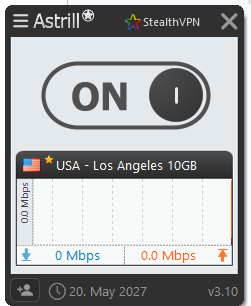
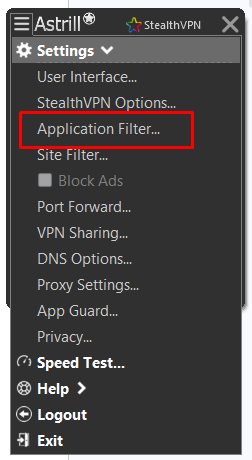
- Head to Settings > Application Filter.
By default, it says Tunnel all apps, which means every program on your PC goes through the VPN.
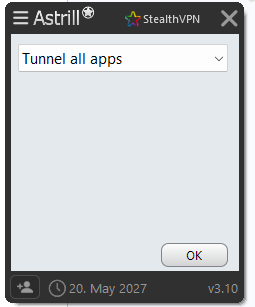
- Choose Tunnel only these apps and add your browser. Chrome, Firefox, Edge, Brave, Opera, whatever you use. Use more than one? Add them all. Then hit OK.
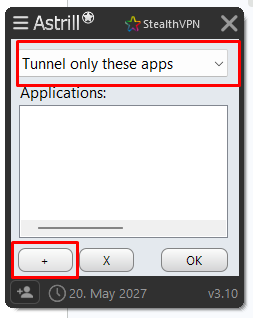
- Leave your game and launcher off the list. Do not add Steam, Epic, Battle.net, Riot Client, the Xbox app, or the game. Anything not on that list just uses your normal internet.
- Connect and fire everything up. Reconnect if Astrill asks you to, so the new setting kicks in. Then open your browser and launch your game like usual.
- Check that your browser shows the VPN IP. Open any IP checker site, or use the Check my IP option in Astrill. You should see the VPN server’s location, not yours.
- Look at your ping. Note your ping with the VPN off, then again with this setup running. They should be the same, or within a couple of milliseconds.
Option 2: Keep everything on the VPN except the game
Want more coverage? Go to the same Application Filter menu and pick Exclude these apps. Then add your game and its launcher. Everything else, your browser, Discord, all of it, stays inside the VPN.
One thing to watch out for here. Lots of games start from a launcher but actually run as a separate program. Some also run their own anti-cheat process in the background. If you miss one of those, part of your game traffic might still sneak through the VPN. So add all of them.
Is It Actually Working? Here Is How to Check
I always do a quick three round test. Takes maybe fifteen minutes and you will know for sure.
| Round | What to do | What you should see |
| 1. No VPN | VPN off. Play a match and write down your ping. | Your normal ping, say 35 ms |
| 2. Full VPN | VPN on, Tunnel all apps. Play on the same server region. | Probably higher, depending on how far the VPN server is |
| 3. Split tunnel | VPN on, browser in, game out. Play again. | Ping back to round 1, and the VPN IP is showing in your browser |
Use the in-game network stats if your game has them. They show ping to the actual match server, which is way more useful than a random speed test. And try to test on the same region and around the same time of day, otherwise you are not really comparing the same thing.
Still Lagging? Check These First
Set everything up and the ping is still bad? It is usually one of these:
- The game runs as a separate program: In Exclude mode, adding just the launcher is often not enough. Add the actual game file and any anti-cheat service too.
- You are playing in the browser: Browser games and cloud gaming in a tunneled browser go through the VPN, obviously. Use the desktop app instead, or live with the extra lag.
- You did not reconnect: The new filter only kicks in after you reconnect. Easy to miss.
- Something is eating your bandwidth: A big download in your browser can still choke your connection, VPN or no VPN. Pause it while you play.
- It is not the VPN at all: If your ping is bad even with the VPN completely off, the problem is your Wi-Fi, your ISP, or how far you are from the server. Split tunneling can’t fix that. Our guide on the best DNS servers for gaming might help, and so might a plain old Ethernet cable.
Is It Safe to Leave Your Game Off the VPN?
For most people, yeah. Your game connects the same way it always has. And game traffic usually doesn’t carry the stuff you actually care about. The sensitive stuff lives in your browser: passwords, card details, and what you search. That is exactly what you are protecting now.
A few honest trade-offs, though:
- The game server can see your real IP. So can other players in peer-to-peer matches. Same as without a VPN.
- Your ISP can tell you are connecting to game servers. It just can’t see what you do in your browser.
- If someone is hitting you with DDoS attacks, or your ISP throttles gaming traffic, it might be smarter to put the game on a nearby VPN server instead. More on that in our guide to DDoS protection. Just pick the closest server and test your ping before a ranked game.
Also, read your game’s rules. Some games are strict about VPNs. Keeping the game outside the tunnel means it sees your normal connection, so that problem pretty much goes away. We have also covered game specific setups, like using a VPN for Warzone and a VPN for PUBG Mobile, if you play either of those.
What About iPhone and Consoles?
The Application Filter works on Windows, macOS, Linux, and Android. On iPhone, Astrill uses Smart Mode instead of per-app filtering. Consoles can’t run VPN apps at all, so the easy fix is to leave the console on your normal connection and do your browsing on your phone or PC with the VPN on.
Wrapping Up
Honestly, you should not have to choose between staying private and actually winning your matches. With split tunneling, you get both. Your browser stays encrypted and hidden, and your game keeps its fast, direct route.
Set it up once in Astrill’s Application Filter, check your IP and ping, and get back to playing. And if you are still shopping around, here is our roundup of the best VPN for gaming.
FAQs
Not below your normal ping, no. What it does is stop the VPN from adding extra ping. With the game outside the tunnel, you should get the same ping you would with the VPN off.
Yep. Either pick Exclude these apps and add your game and launcher, or pick Tunnel only these apps and add just your browser. Both work. The game skips the VPN either way.
Any desktop browser on your computer. Chrome, Firefox, Edge, Brave, Opera, you name it. Just add everyone you plan to use.
Up to you. Voice chat cares about lag, so a lot of players keep Discord on the normal connection. If privacy matters more to you, keep it tunneled. For voice, the delay is usually tiny anyway.
It does. It works with StealthVPN, OpenVPN, and WireGuard in the Astrill app. Not sure which one to use? Our WireGuard vs OpenVPN breakdown should help.











No comments were posted yet